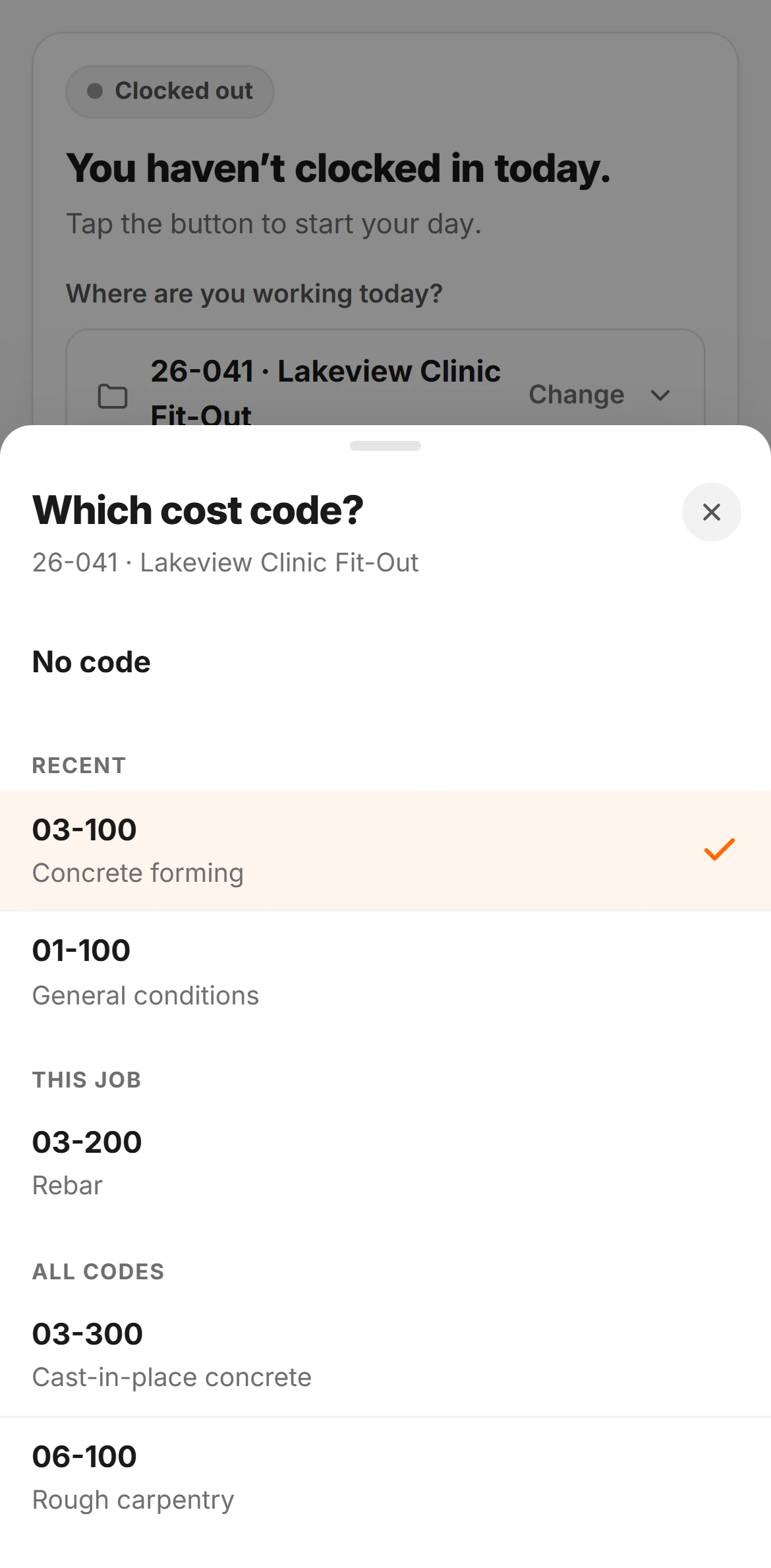
Skip to content
CREWLOG
FeaturesAIPricingFAQAboutContact
Log inStart free trial
Free trial
Book a demo
Features

Everything on your jobsite.
Captured once. Everywhere it needs to be.

CrewLog is what your crew carries into the field and what your office runs on. Photos, voice and hours go in. Daily reports, change orders, RFIs, schedules and a live read on every job come out.

Start free trialSee everything it does

7 days free on Pro, then the plan you pick · Card required, $0 today

One Tuesday · Cedar Ridge Custom Home
  1. 6:41

    Toolbox talk

    Fall protection, signed by six

  2. 7:02

    Crew on the clock

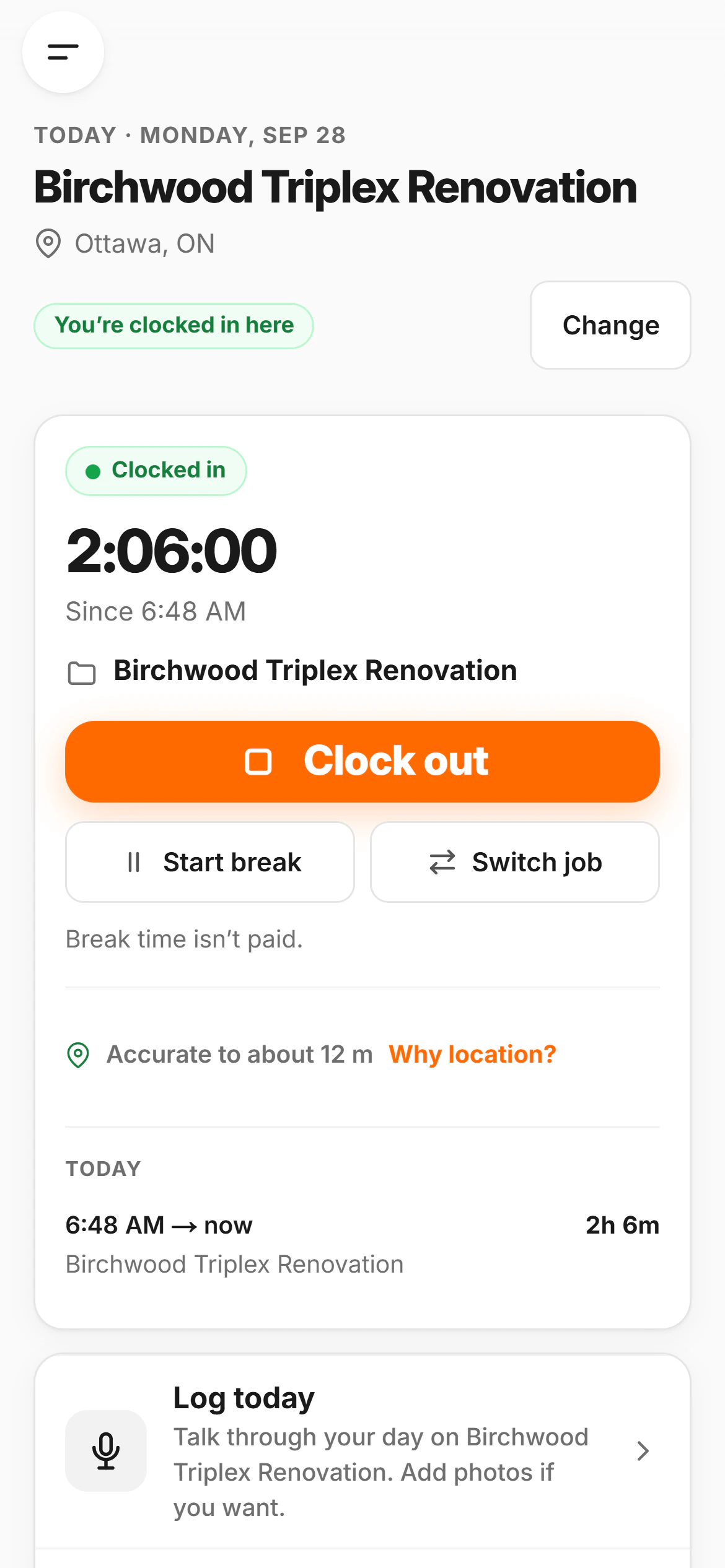
    Hours start against the job

  3. 9:18

    14 site photos

    Filed to the job, pinned to the map

  4. 10:42

    Voice note

    38 seconds, gloves still on

  5. 11:26

    RFI raised

    Beam pocket conflict, sent

  6. 13:35

    Delivery short

    Rebar 40 pieces down

  7. 14:10

    Change order

    Signed on the client’s phone

  8. 16:58

    Daily report

    Read over, sent, filed

The big picture

Everything on the job follows the same path

A photo. A sentence you said out loud. An hour worked. It gets captured, it files itself against a job, it turns into a document somebody can act on, and it changes what CrewLog can tell you about how that job is going.

01

Capture

Get it recorded without stopping work.

  • Voice notes
  • Site photos
  • Typed notes
  • Hours
  • Receipts
  • Offline capture
02

Manage

It files itself against the right job.

  • Jobs
  • Crew & roles
  • Tasks
  • Schedule
  • Materials
  • Drawings & documents
  • Contacts
  • Field map
03

Document

It becomes something you can send.

  • Daily reports
  • Change orders
  • RFIs
  • Toolbox talks
  • Timesheets
  • Photo markup
04

Understand

You find out where you actually stand.

  • Project Pulse
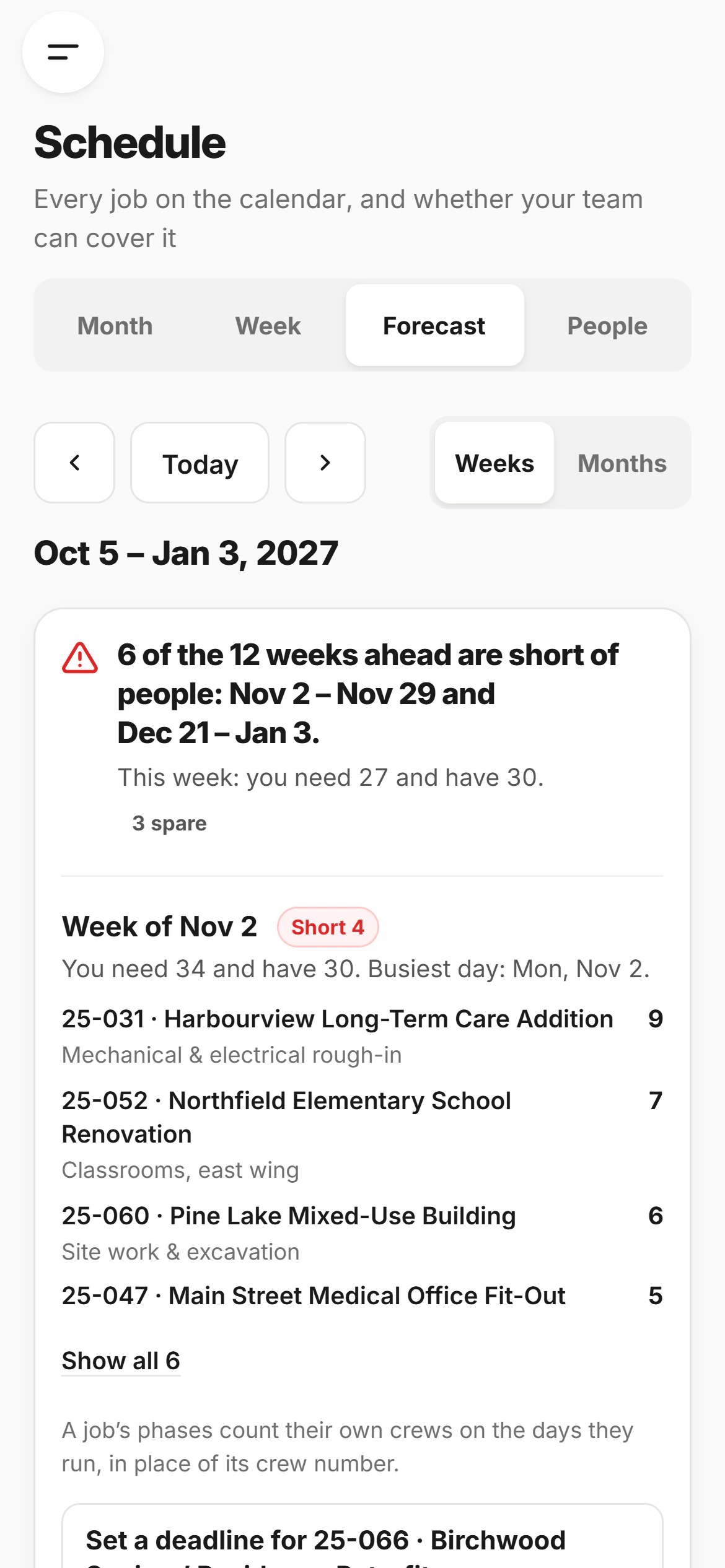
  • Schedule Forecast
  • Job Forecast
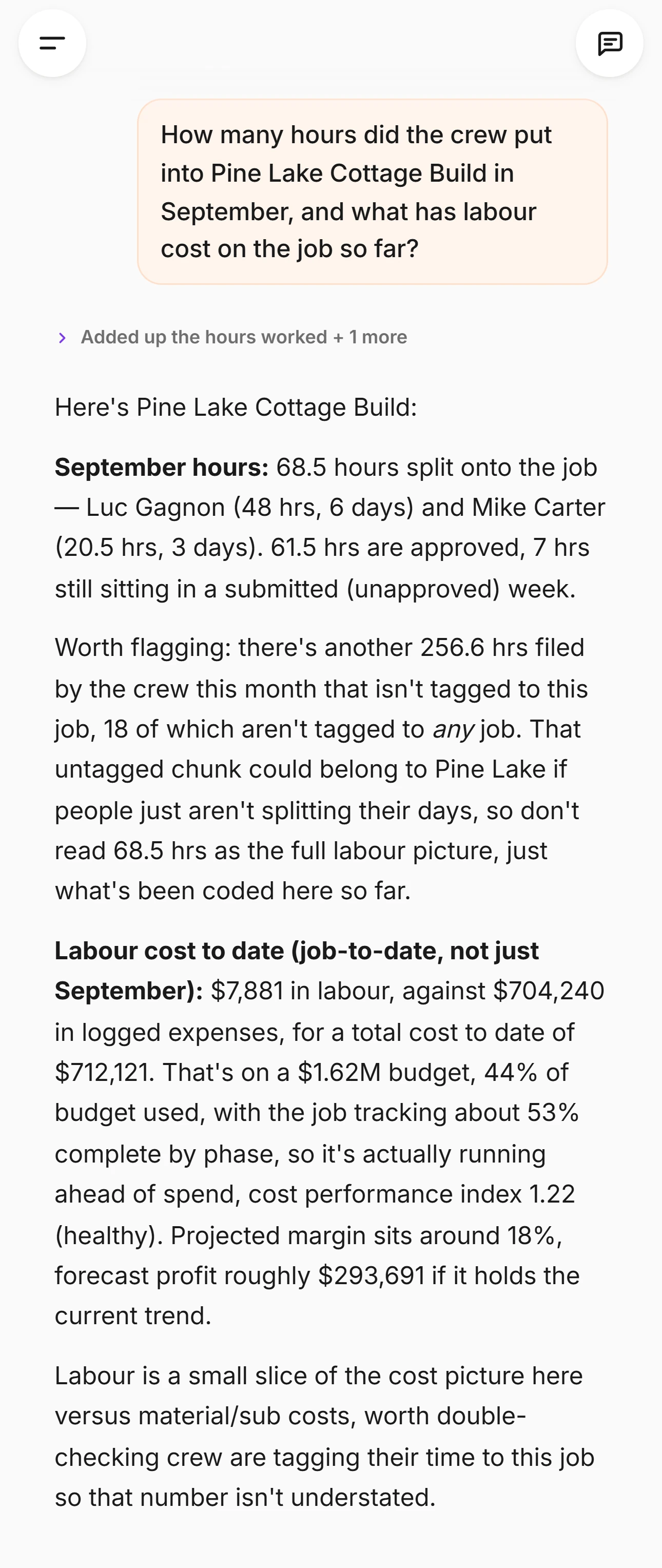
  • Job costing
  • Construction Assistant
  • Search everything
  • 26screens in the product
  • 22tools the Assistant can use
  • 32toolbox talk topics
  • 9feeds on one calendar
  • 3languages, end to end

The rest of this page walks that path from left to right, one chapter at a time, showing the real screen at each stop.

01Capture

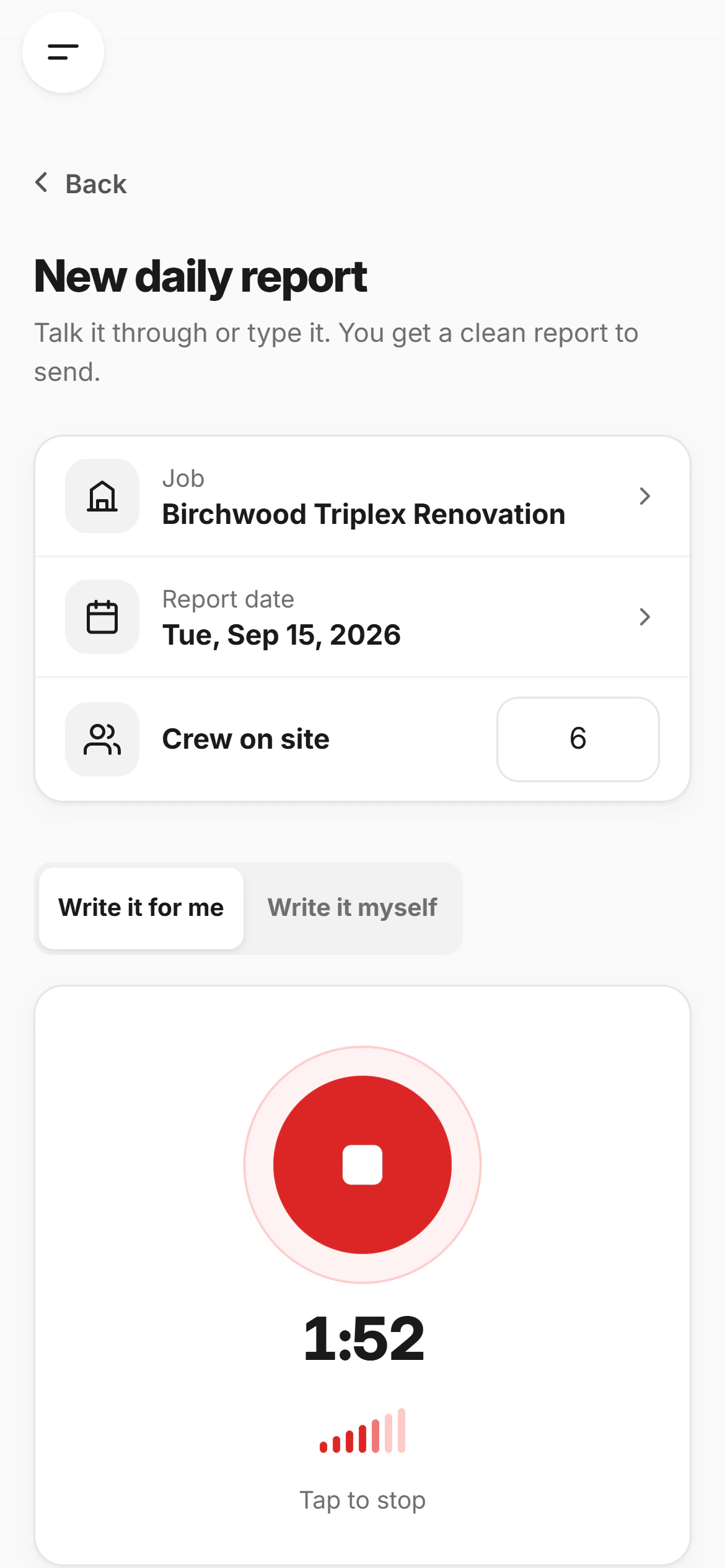
It starts in the field

Nobody types a report standing in a trench. So CrewLog takes the day the way it actually happens — said out loud, photographed, or thumbed in between two other things — and does the filing itself.

0:38

Talk it through

A house under construction, wrap taped and the first course of siding on 45.28, −75.7514

Shoot what you see

Crew on site · 617 °C, clear

Level 3 layout done east half. Hydro tie-in still waiting on inspection. Two labourers off after lunch.

Or just type it

4:58
The CrewLog capture screen on a phone: pick the job, set the crew count, record a voice note, type the field notes

The capture screen, on the phone it was built for.

  • One screen: pick the job, tap record, drop the photos in. The mic level moves so you know it is hearing you over a compressor.
  • Stop, play it back, add more to the same recording. Voice and typed notes are the same report, not two features.
  • The weather at the site is looked up and logged for you, so nobody has to remember what the afternoon did.
  • Photos carry their own GPS out of the camera's EXIF, which is what later puts them on the map at the spot they were taken.

All of it works with no signal at all. The recording, the photos and the typed notes are held on the device and send themselves when you are back in range — chapter 16 shows exactly what that looks like.

02Photos

Jobsite photos that stop being camera roll

Every shot lands on its job with the time it was taken and the spot it was taken from. Months later you can pull up what was behind the drywall — and prove it.

The Photos screen in CrewLog: every photo across every job, grouped by date and searchable by caption
Search by job or captionOr narrow to one job, or a dateFiled to its job and its dayNobody ever names a folder
  • Search by job or captionOr narrow to one job, or a date
  • Filed to its job and its dayNobody ever names a folder
The Photos screen, as it ships.

And they are still photographs

  • Caption anything, then search captions across every job you have ever run.
  • Mark one up in the editor — circle the hanger, arrow the nail count, type what is wrong — and save it beside the clean original.
  • Geotagged photos become their own pins on the field map, so you can see where a shot was taken as well as when.
  • Attach them to a daily report as you capture, or upload a batch later from the office.
  • From the photo itself: open the report it came in on, download it, or change the caption.
  • Captions translate for a crew reading in French or Spanish, and the photo stays the photo.

A photo with no GPS still files perfectly — EXIF location is read best-effort and never blocks an upload. It just will not have a map pin, and the product says so rather than guessing a location.

The markup tools, in full

SelectPenLineArrowCircleTextCrop

Red, orange, yellow, white or black ink. Saving asks one question: keep the original photo as well, or replace it.

Wrap taped and the first course of siding on a two-storey house
Cedar Ridge Custom HomeTue 10:26 · Siding · east elevation
Poured foundation walls with rebar dowels and stripped forms leaning against them
Summit Ridge Retail PlazaMon 08:12 · Foundation walls
Interior framing with electrical boxes, PEX and drain lines roughed in
Harborview Condo TowerWed 11:40 · Mechanical rough-in
A framer setting roof trusses over a framed garage
Cedar Ridge Custom HomeFri 15:03 · Trusses set
A joist hanger photographed on site, circled in red ink with an arrow pointing at it and the note ‘Hanger nails short — 8 of 10’Hanger nails short — 8 of 10

Circle, arrow and text: three of the seven tools, in three of the five inks.

03Voice

Say it once. That is the paperwork.

Thirty-eight seconds in the truck with the engine running is a full day's record. CrewLog transcribes it, files it, and pulls the parts somebody has to act on out of your own words.

  • Works in English, French and Spanish — and the report can come out in a different language than you spoke it in.
  • Recorded with no signal? The audio itself is queued and transcribed when the phone finds a network.
  • Reports read back to you out loud, which is how a lot of supers review one while driving.

Transcription is capped per plan — 60 a month on Solo, 400 on Crew, 1,000 on Pro — and the number is on your usage screen, not buried in a footnote.

10:42 AMSummit Ridge Retail Plaza0:38
“Steel delivery got pushed to Thursday. Crew moved up to level three, kept framing the east half. Nine on site.”

Pulled out of that sentence

Delay flaggedSteel · ThursdayDelivery notedRescheduledTask queuedChase steel ETA

The flags are the product's own four — delay, delivery, change order, safety — and tapping the change-order one opens a draft already filled in for that job.

Say too little and it refuses

“There isn’t enough here to write from yet. A report is part of the job’s permanent record, so CrewLog only writes what you actually said.”

The real message, word for word. Twelve substantive words is the floor, and the count runs in code before the model is called. A silent recording cannot become a day of work that never happened.

04Daily reports

Talk for a minute. Read a document.

This is the trade CrewLog exists to make: the raw stuff of a day in, a report a general contractor will accept out. Written in trade language, under your letterhead, in about ten seconds.

What it reads

  • Voice note0:38, transcribed
  • 14 photosAttached to the day
  • Crew count6 on site
  • WeatherLooked up for the site
  • Hours filedWho actually clocked in
  • Yesterday’s reportSo today can say “continued”
  • Open tasks and RFIsAnd how long each has been open
  • Job ForecastPhases on that date Pro

Only the top three come from the field today. CrewLog already had the rest, which is why a report can say “continued” instead of starting from nothing.

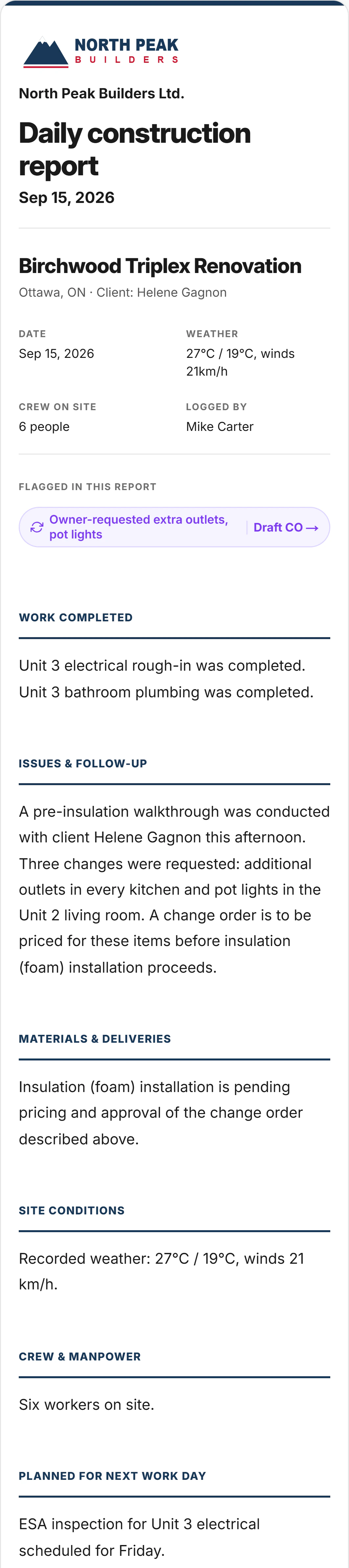
A finished CrewLog daily report: the company letterhead, the date and weather, a flagged delay, a summary, and the Work Completed section
Client link, PDF, resendOr draft an RFI from itYour letterhead, not oursLogo, name and colour · ProWritten in trade termsRough-in, elevation, terminations
  • Client link, PDF, resendOr draft an RFI from it
  • Your letterhead, not oursLogo, name and colour · Pro
  • Written in trade termsRough-in, elevation, terminations
One report from the seeded demo account, opened.

Then it leaves the building

Client link

Opens on any phone. No account, no app, no login.

Email it out

To saved contacts, or add a recipient at the send step.

Print, PDF, CSV

Print any report, or export the file and keep your own copy.

On a schedule

A nightly reminder so the day never goes unlogged.

  • Your logo, company name and brand colour, on the email and the document Pro
  • PDF and CSV export Pro
  • Scheduled nightly reminders Pro

You read it before anybody else does. CrewLog writes from what you reported and nothing else — it will not invent a section your notes do not support, and it will not write “none reported” to fill a gap. If the day had no safety observation, the report has no Safety Observations heading.

More on how the writing itself works on the AI page →

05Projects

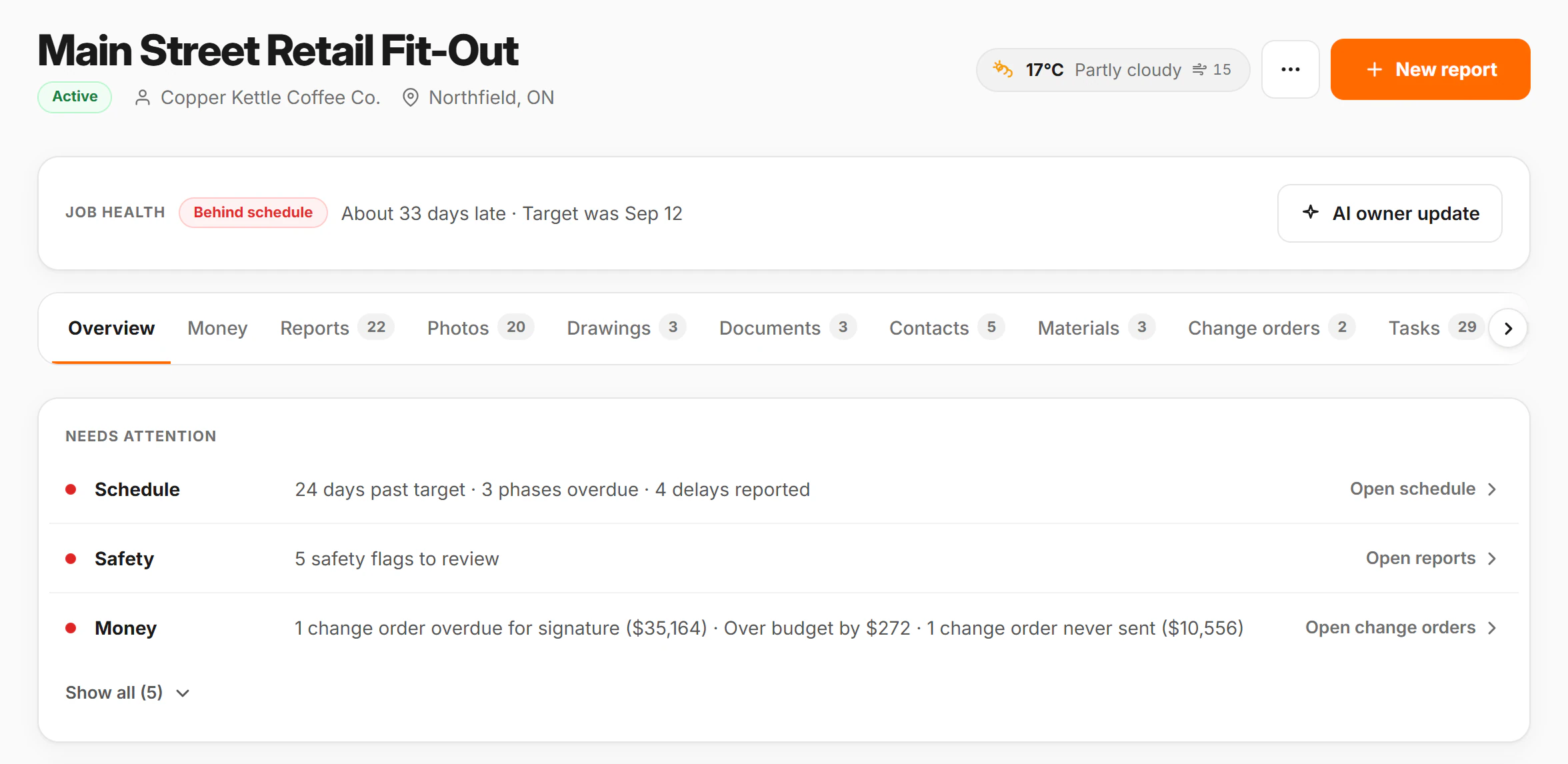
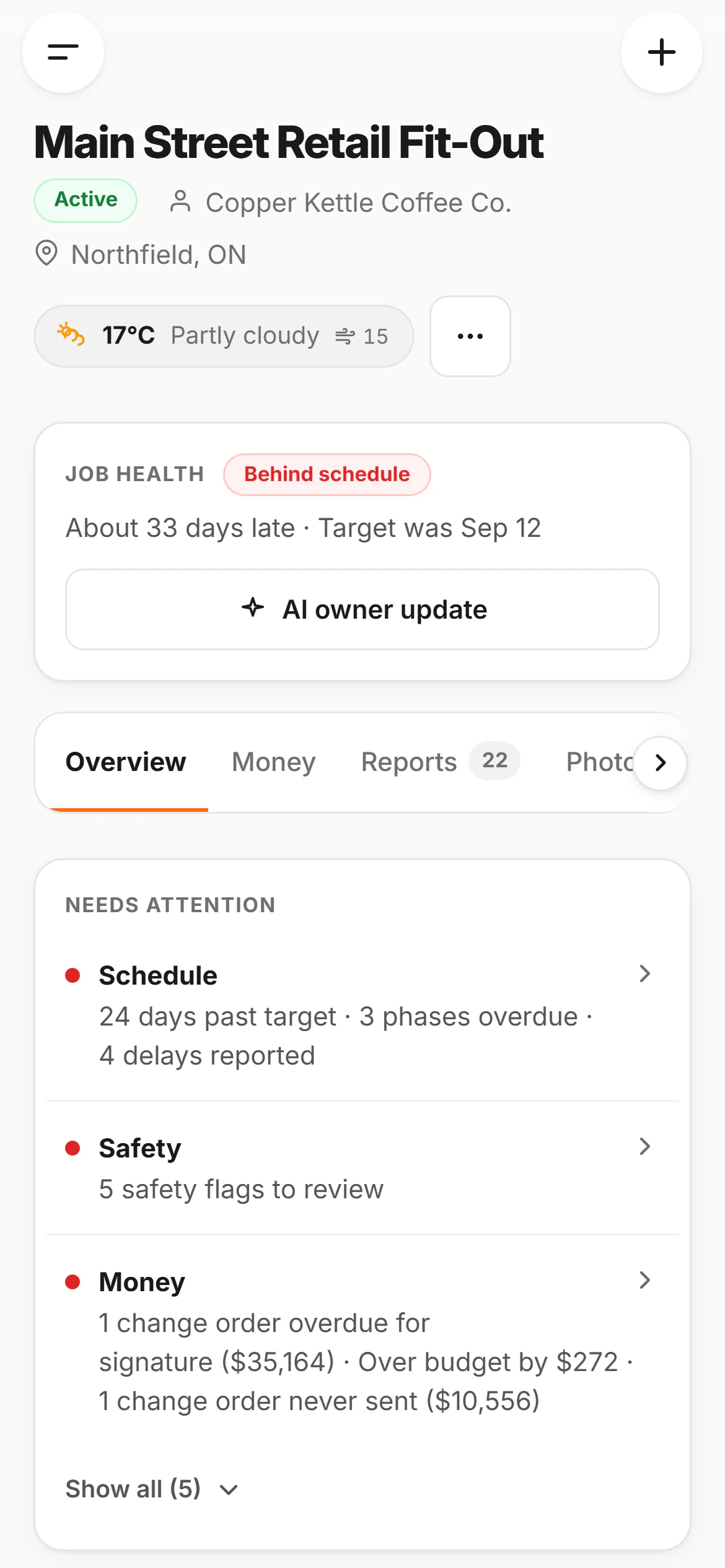
A job is a folder that fills itself

Create it once — name, site address, client, contacts, budget, target finish. From that moment every report, photo, drawing, delivery, change order and task files itself here, and nobody ever names a folder.

A CrewLog job page: the job header with its counts, a job health score, and the tab strip for reports, photos, drawings, documents, contacts, materials, change orders and tasks
The record so farDates, crew-days, every flagJob health, scoredFrom the records below itTen tabs, one jobThey fill as the crew works
  • The record so farDates, crew-days, every flag
  • Job health, scoredFrom the records below it
  • Ten tabs, one jobThey fill as the crew works
A job page from the seeded demo account.
  • Statuses that mean something operationally: active, upcoming, on hold, completed — and the map, the lists and the forecast all read them.
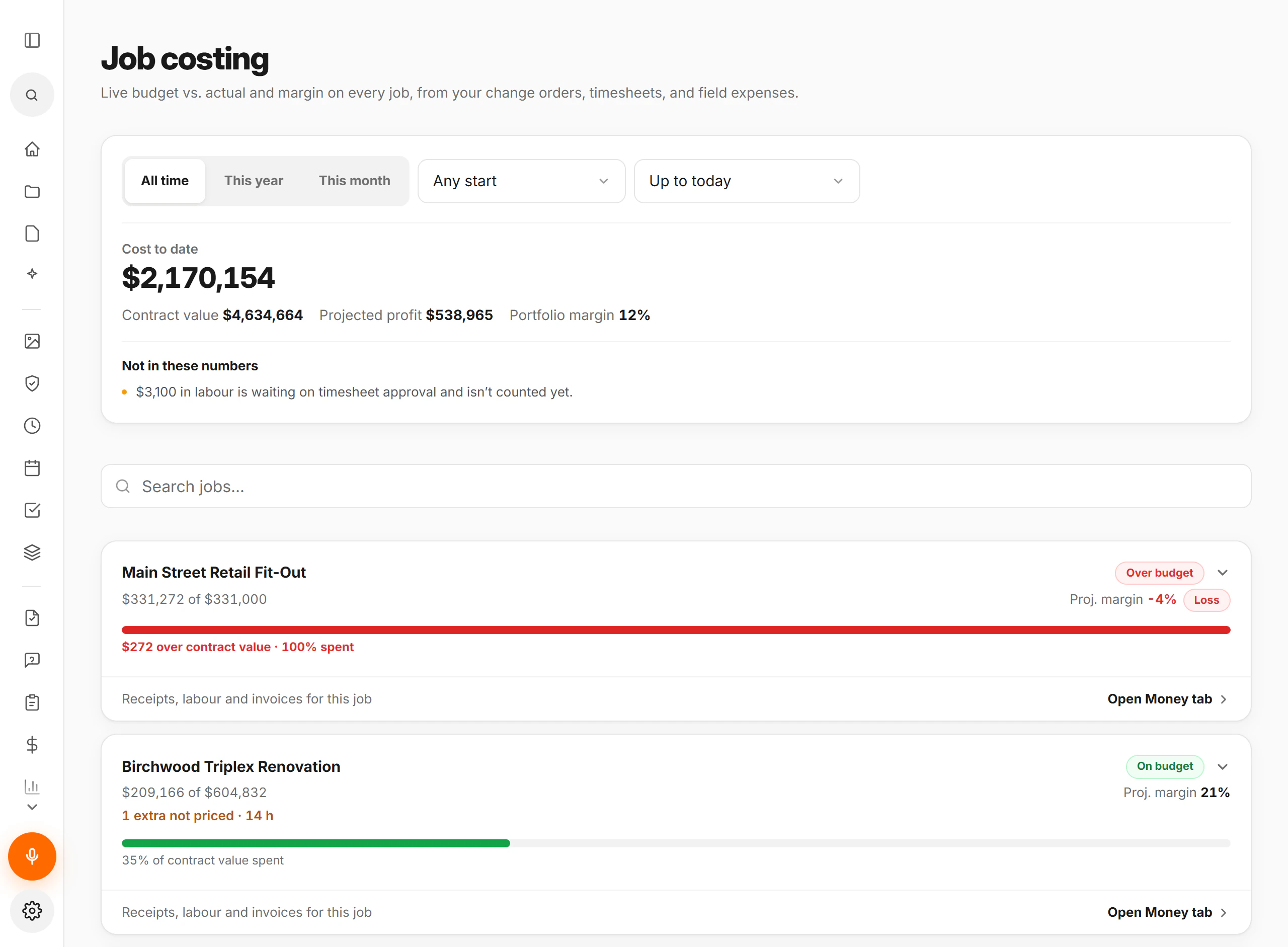
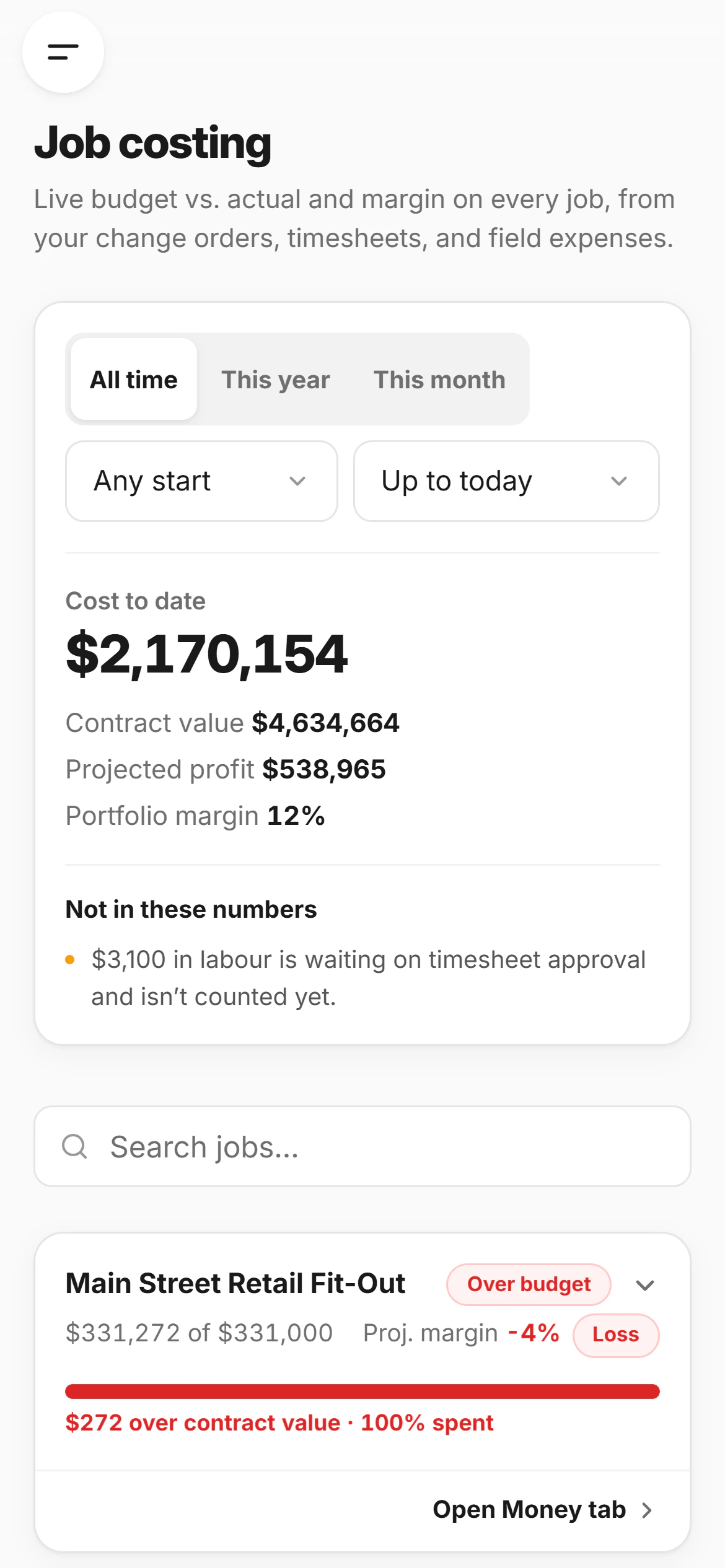
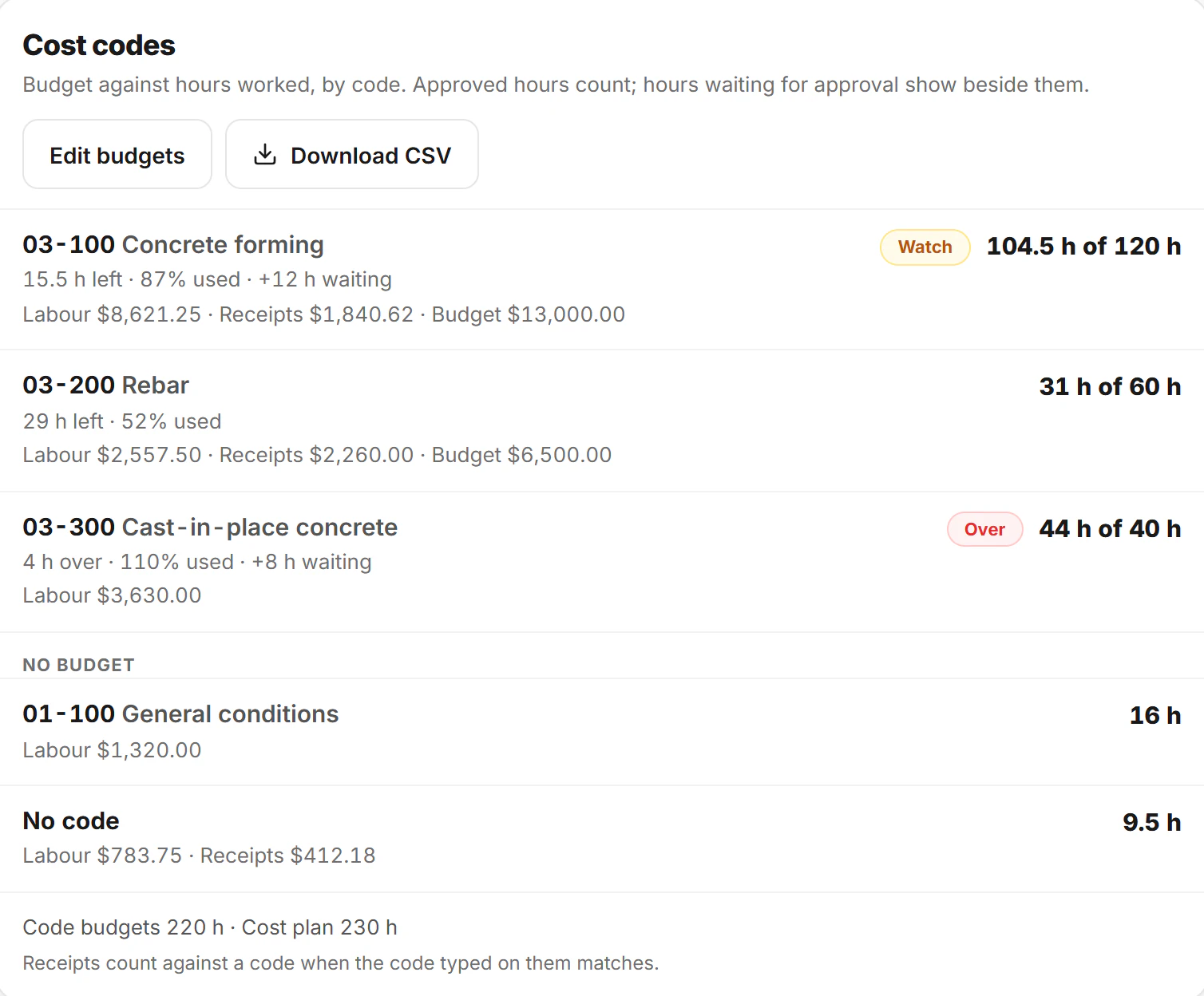
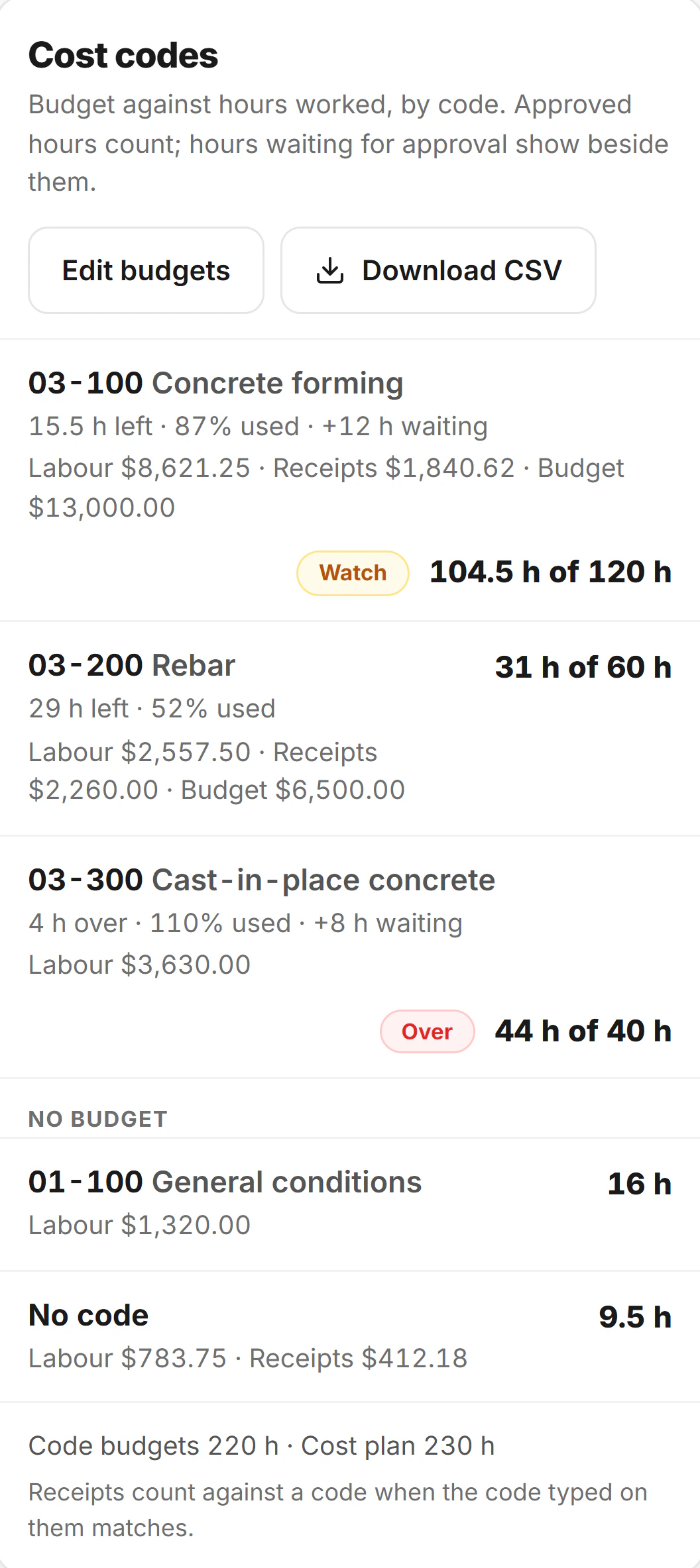
  • Job costing sits on the same record: budget by category, expenses with receipts attached, labour priced from real timesheet hours, and signed change orders added to the contract value. Crew · Pro
  • Give a crew member every job, or only the three they are actually on. Nothing outside their list is even visible to them.
  • Five jobs on Solo, ten on Crew, unlimited on Pro — and the count on your dashboard says which of those you are using.
  • Contacts live on the job, so “send it to the client” already knows who the client is.
  • ⌘K from anywhere searches jobs, daily logs, RFIs, change orders, tasks, contacts, drawings, documents, materials and the safety register at once.
06Crew

Who is on it, what they can open, what they cost

Invite by email with a role. Give each person every job or only the ones they are actually on. Then set a switch for each part of CrewLog they can open — fifteen of them, one person at a time.

The People screen in CrewLog: the team roster with each person's role and job access
People · roles, job access, and a switch per feature, per person.
The Timesheets screen in CrewLog: a week of hours per crew member with the overtime rule and the payroll total
Timesheets · the week with the pay maths already done.
  • Four roles: owner, admin, member, viewer. A viewer reads and never writes, which is exactly what a client or an architect should have.
  • Crews scheduled by the day, so nobody is booked into two places at once — and time off goes on the same week.
  • Each row on the roster carries what that person actually did this month — reports written, photos uploaded, change orders raised, AI messages used.
  • Set a wage and an overtime rule once — 1.5× after 40, 2× after 50, 2× on weekends — and the labour cost lands in job costing on its own. Crew · Pro
  • Approve locks the week, or send it back with a note. One seat on Solo, five on Crew, unlimited on Pro.
  • Export for payroll writes the file a clerk runs from: a row per person per day, tagged to the job, with the overtime split and the date the week was approved.

A signature is a person attesting they were there, so nothing in CrewLog signs on someone's behalf — not you, and not the Assistant. When it drafts a toolbox talk the names go on as an attendance list, and your crew still signs it themselves.

15 switches, by name

A viewer can be given these

  • Daily Reports
  • Photos
  • Schedule
  • Tasks
  • Materials
  • Safety & Toolbox Talks
  • Files (Drawings)
  • Documents (in Files)
  • Field Map

Never offered to a viewer

  • Change Orders
  • RFIs
  • Timesheets
  • Job Costing
  • Job Forecast
  • AI Assistant

Switch one off and it leaves that person's nav. The page behind it turns them away too, so a saved link is not a way back in.

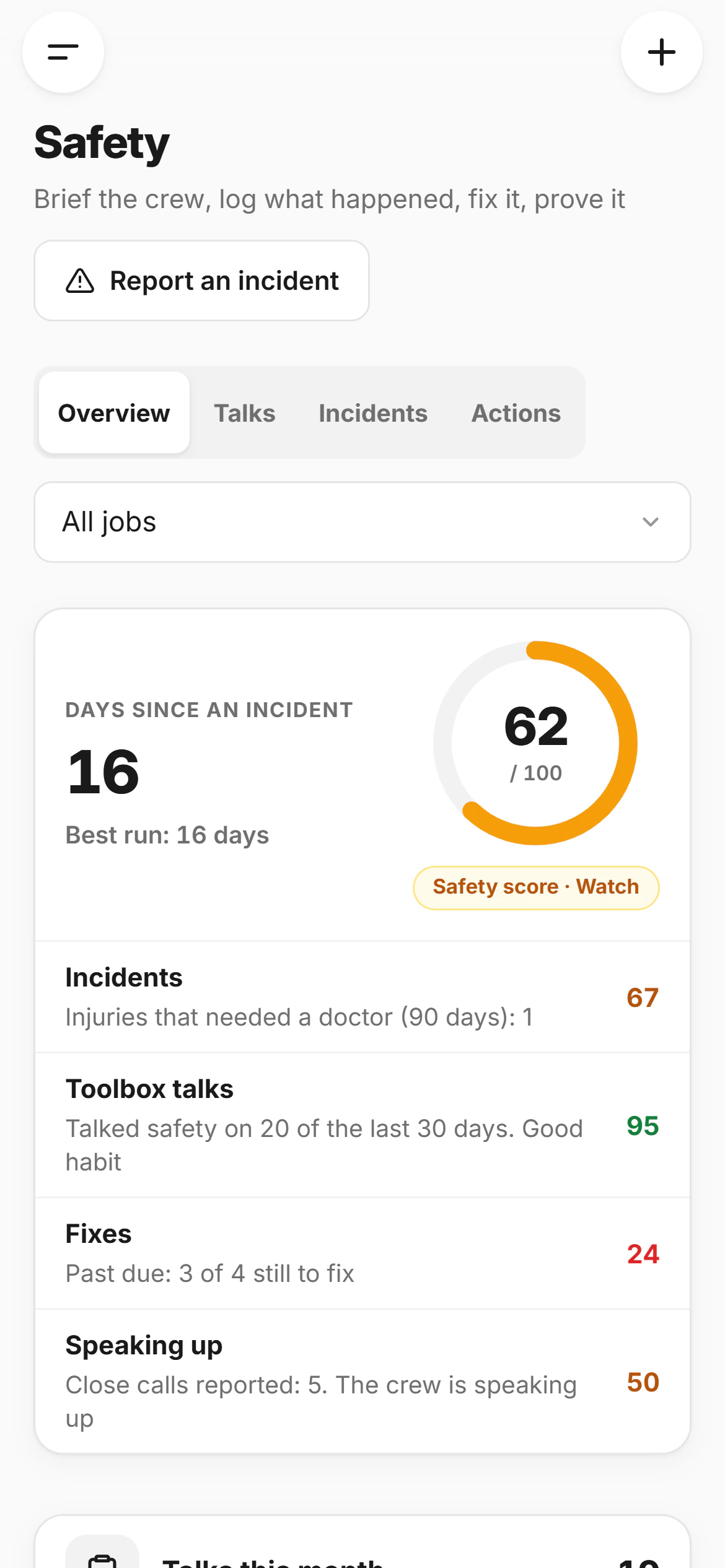
07Safety

Brief the crew, log what happened, prove it

A morning talk, a near miss, a corrective action with somebody's name on it. All of it on the same record as the work — which is the only version an insurer or a general contractor will accept.

  • 32 toolbox talk topics that come with the points to cover — fall protection, silica dust control, lockout / tagout, excavation and trenching — and 14 common hazards to tick.
  • Each person signs the talk themselves. Nothing in CrewLog signs on somebody's behalf.
  • An incident and near-miss register on every plan, with corrective actions that carry an owner and a due date.
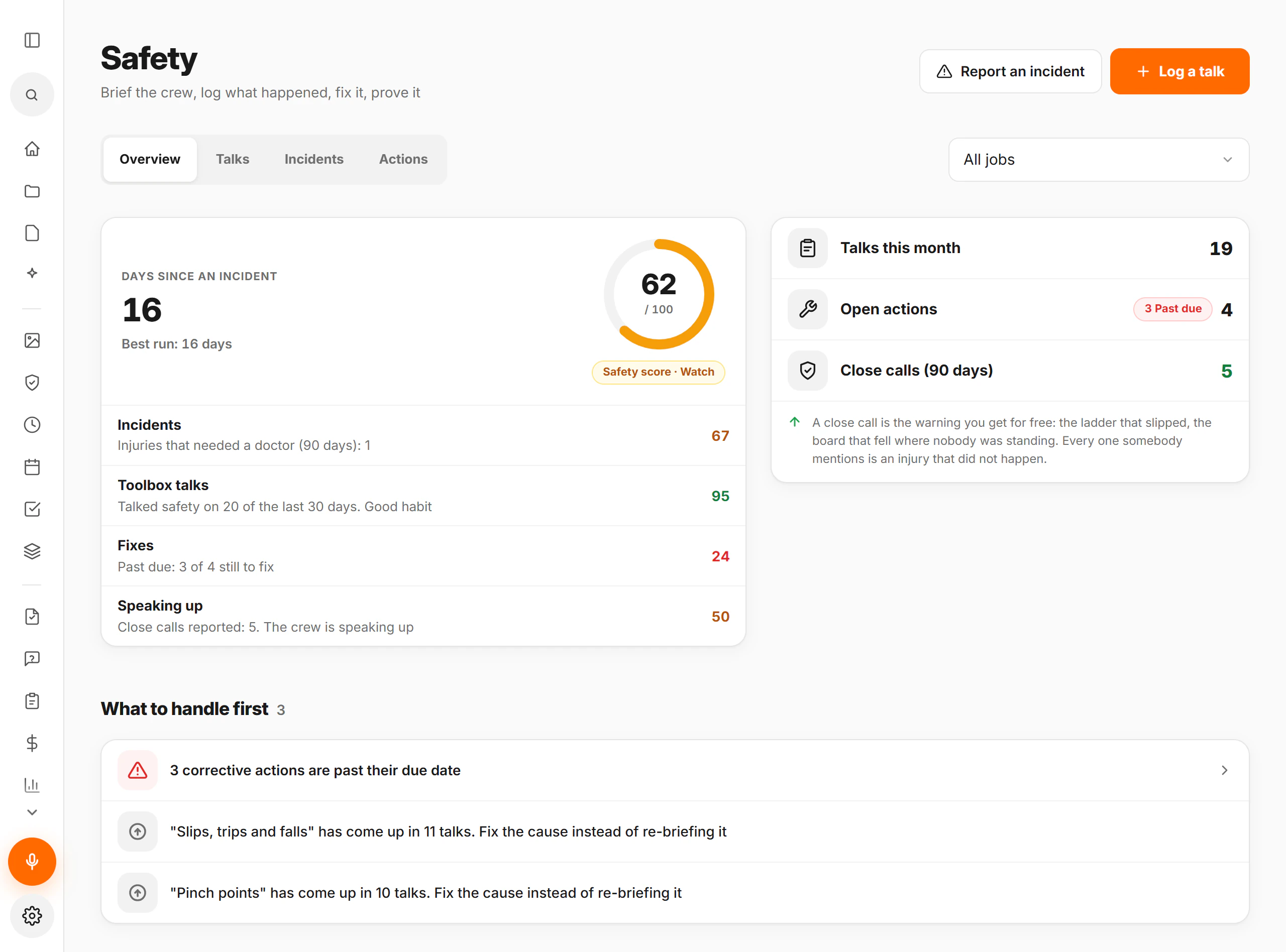
  • A safety score built from four measures you can argue with: incidents, briefing, follow-up and reporting.
  • Export a talk as a PDF for a GC or your insurer. Pro

“Near misses per injury” is deliberately a higher-is-better number. A crew that reports near misses is a crew that speaks up before somebody gets hurt, and the screen says so rather than rewarding silence.

The Safety screen in CrewLog: a score of 69 out of 100 marked watch, broken into incidents 100, briefing 30, follow-up not measured and reporting 70, with talks this month, open actions, near misses per injury, and what to handle first
Safety, across every job on the account.

The talk library, in full

  • Fall Protection
  • Ladder Safety
  • Scaffolding Safety
  • PPE Inspection
  • Hand Tool Safety
  • Power Tool Safety
  • Electrical Safety
  • Lockout / Tagout
  • Excavation & Trenching
  • Confined Space Entry
  • Hot Work / Welding
  • Fire Prevention
  • Heat Stress / Hot Weather
  • Cold Weather Safety
  • +18 more

Every topic arrives with the points to cover, so a talk is a two-minute job. Plus 14 common site hazards to tick on the way out.

08Tasks

One job, followed all the way through

Not a board to maintain. A short list of what is actually outstanding — much of it pulled straight out of the notes you already dictated.

  1. 1Create
    Chase steel ETA with DominionSummit Ridge Retail Plaza
  2. 2Assign
    Chase steel ETA with DominionDana Reyes · due Wed 13 AugAssigned
  3. 3Track
    Chase steel ETA with DominionDana Reyes · due todayDue today
  4. 4Complete
    Chase steel ETA with DominionClosed Wed 13 Aug · 16:04Done
The task list in CrewLog, grouped by what is assigned to you, what is overdue, what is due today and what is upcoming
One list, every jobFilter it by job or by personSorted by what is lateOverdue, today, then the week
  • One list, every jobFilter it by job or by person
  • Sorted by what is lateOverdue, today, then the week
The list, across every job.
  • Assign one and that person gets an email. Nobody has to be looking at the app for it to land.
  • Tasks show up on the calendar too, and drag to a new day like anything else on it.
  • Follow-ups are pulled out of your daily notes automatically — “CrewLog queued 3 follow-ups from your notes”.
  • Overdue tasks are one of the inputs the Schedule Forecast reads, so a list nobody clears becomes a slip you can see coming.
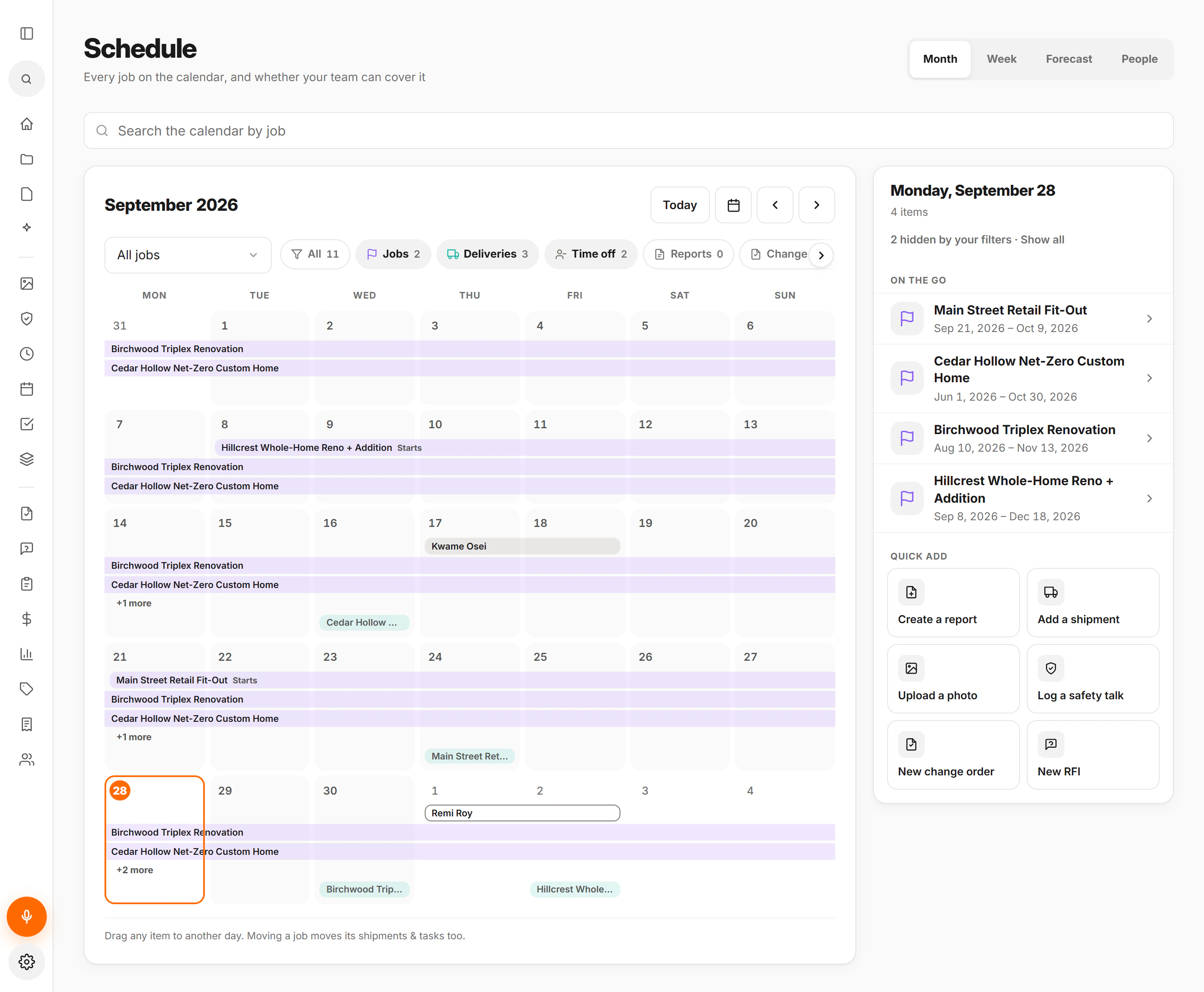
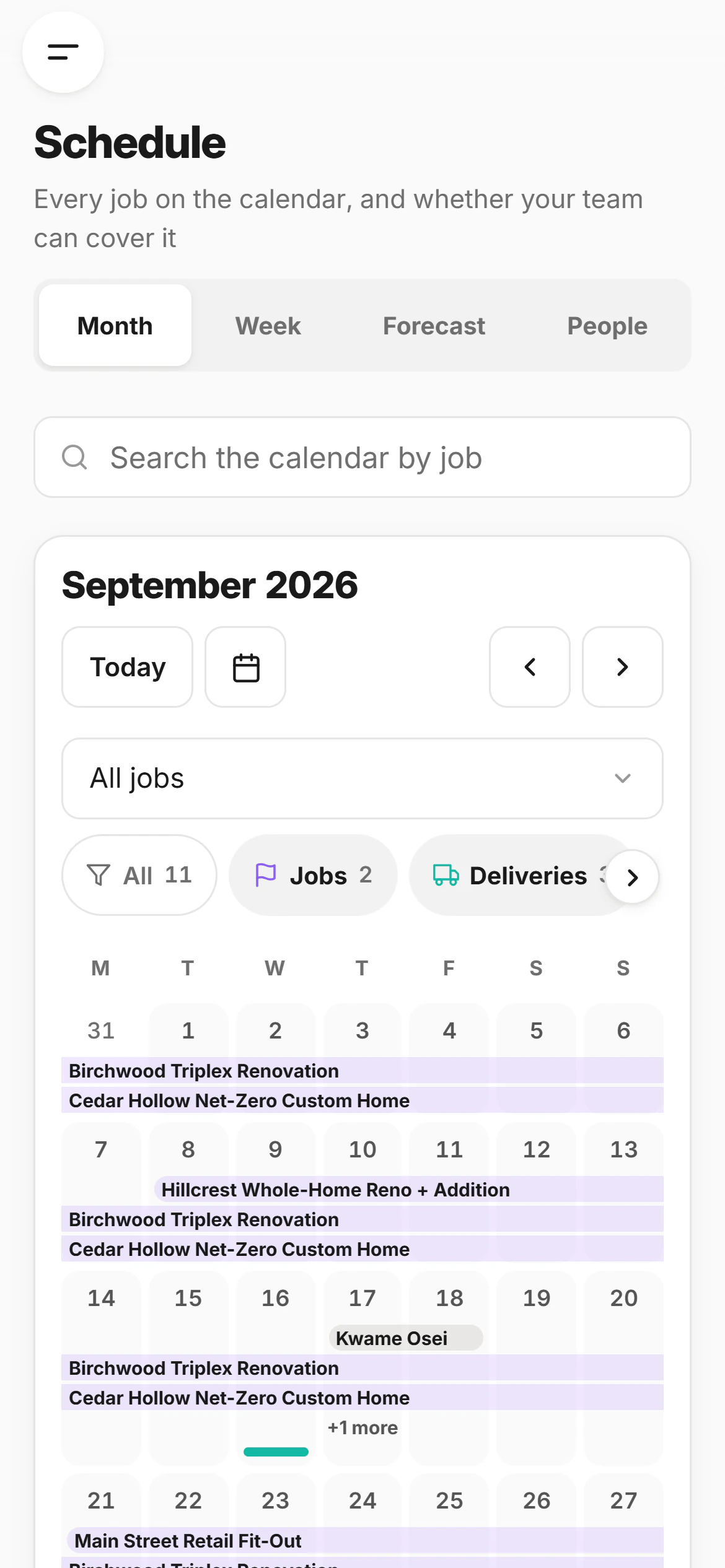
09Schedule

Nine feeds. One month.

The calendar is not a tenth thing to keep up to date — it is every other part of CrewLog, seen by date. Reports, change orders, RFIs, toolbox talks, tasks, job starts, deliveries, planned phases and time off, all on one grid.

  • Daily reports
  • Change orders
  • RFIs
  • Toolbox talks
  • Tasks
  • Job starts
  • Deliveries
  • Forecast phases
  • Time off
The Schedule screen in CrewLog: a month grid carrying reports, change orders, RFIs and safety talks, with a filter row and a day panel
Filter to one feedEach chip carries its countAdd straight from a dayReport, shipment, photo, talk
  • Filter to one feedEach chip carries its count
  • Add straight from a dayReport, shipment, photo, talk
August, on the seeded demo account.
  • Month, week, a crew-by-crew People view, or a single day panel with everything on it.
  • Switch to the list and it becomes the task view — same data, the shape you need at the moment you need it.
  • Type a job name and the search lists that job's dated items. Pick one and the month jumps to it.
  • Drag a delivery or a task to a new day and it reschedules.
  • Move a job's start and CrewLog asks whether its deliveries and tasks travel with it, rather than silently dragging twelve things along.
  • A day with more on it than fits says how many are hidden, and opens as a panel carrying the lot.

Weather moves a start date more often than anything else, which is exactly why that question gets asked instead of assumed.

10Field map

Every job. Right where it actually is.

Not a pin dropped on an address list. A working map of your whole operation: what is live, what starts next, what is parked, and where your crews were standing when they took every photo.

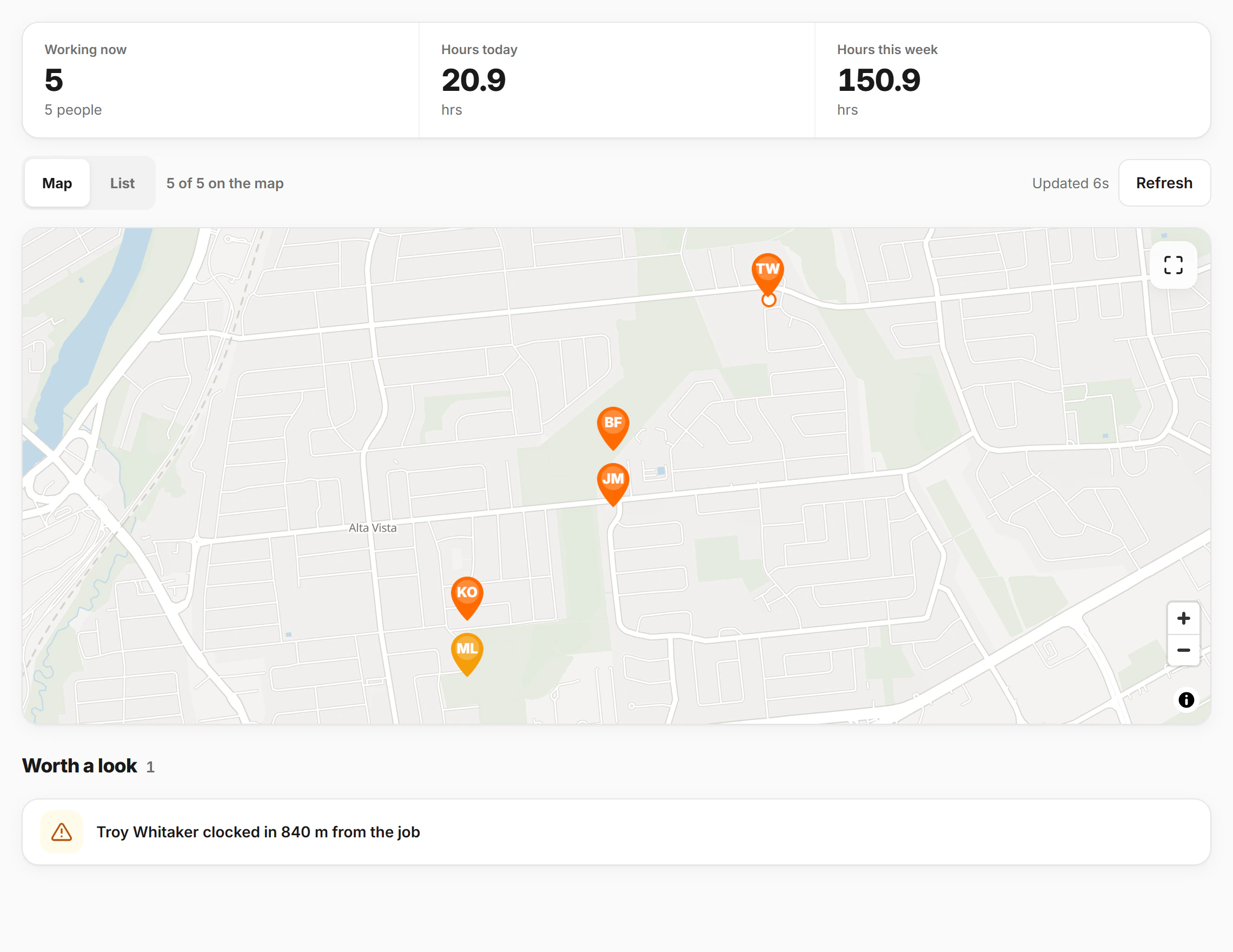
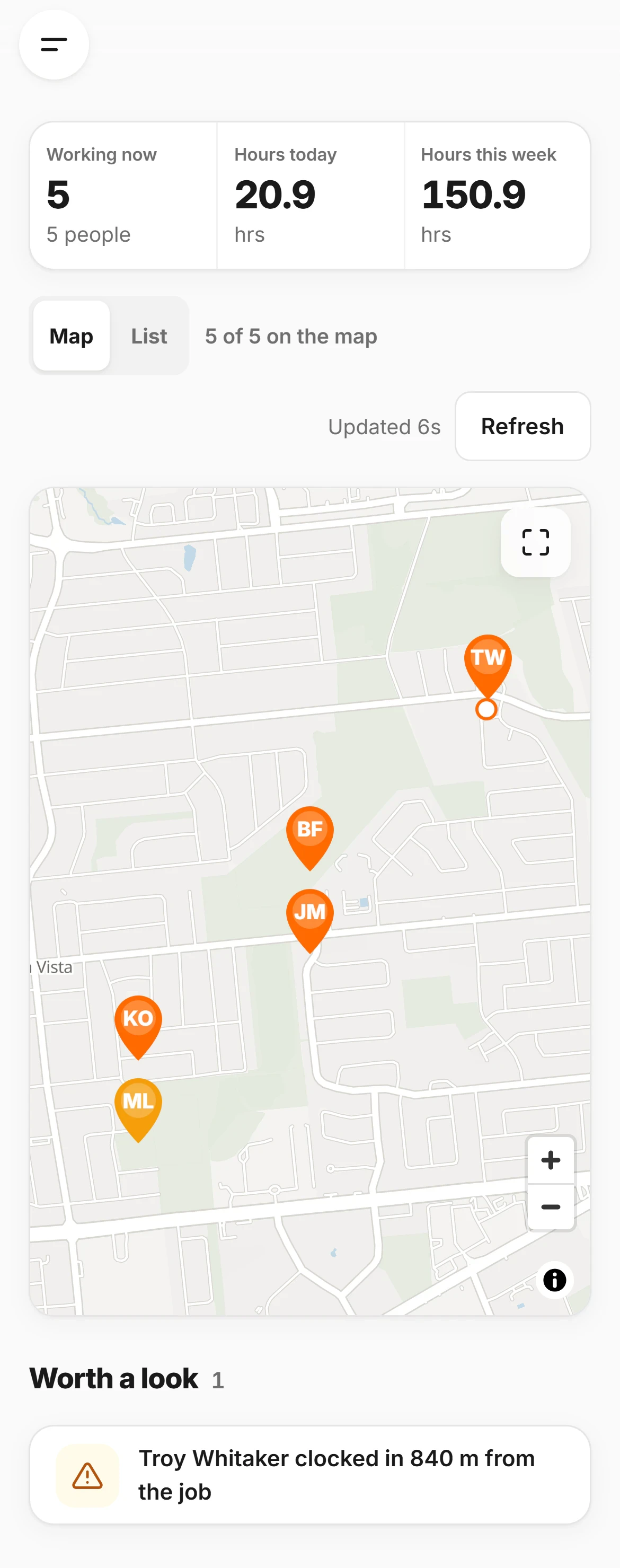
The CrewLog field map: five jobs across one service area as orange pins, with clustered blue photo pins beneath them
Every job, one mapFitted to your service areaPhotos pin themselvesRight where they were takenStreets, satellite, terrain
  • Every job, one mapFitted to your service area
  • Photos pin themselvesRight where they were taken
  • Streets, satellite, terrain
The field map, drawn by the app. Basemap © OpenFreeMap, © OpenMapTiles, © OpenStreetMap contributors.
  • Active
  • Upcoming
  • On hold
  • Photos, where they were taken
  • Tap a job for its card: client, address, status, and one tap to directions.
  • Status is carried by the pin's shape as well as its colour — filled, hollow, bar — so it still reads for anybody who cannot separate the two.
  • Completed jobs are hidden by default, so the map reads as what is live right now.
  • A job we could not place is named in a banner with the reason — no address, geocoding failed, not located — never dropped silently.
  • Switch to the list for the same jobs with search, and switch back without losing your place.
  • The basemap is free, keyless and explicitly licensed for commercial use, so it cannot be switched off underneath you.
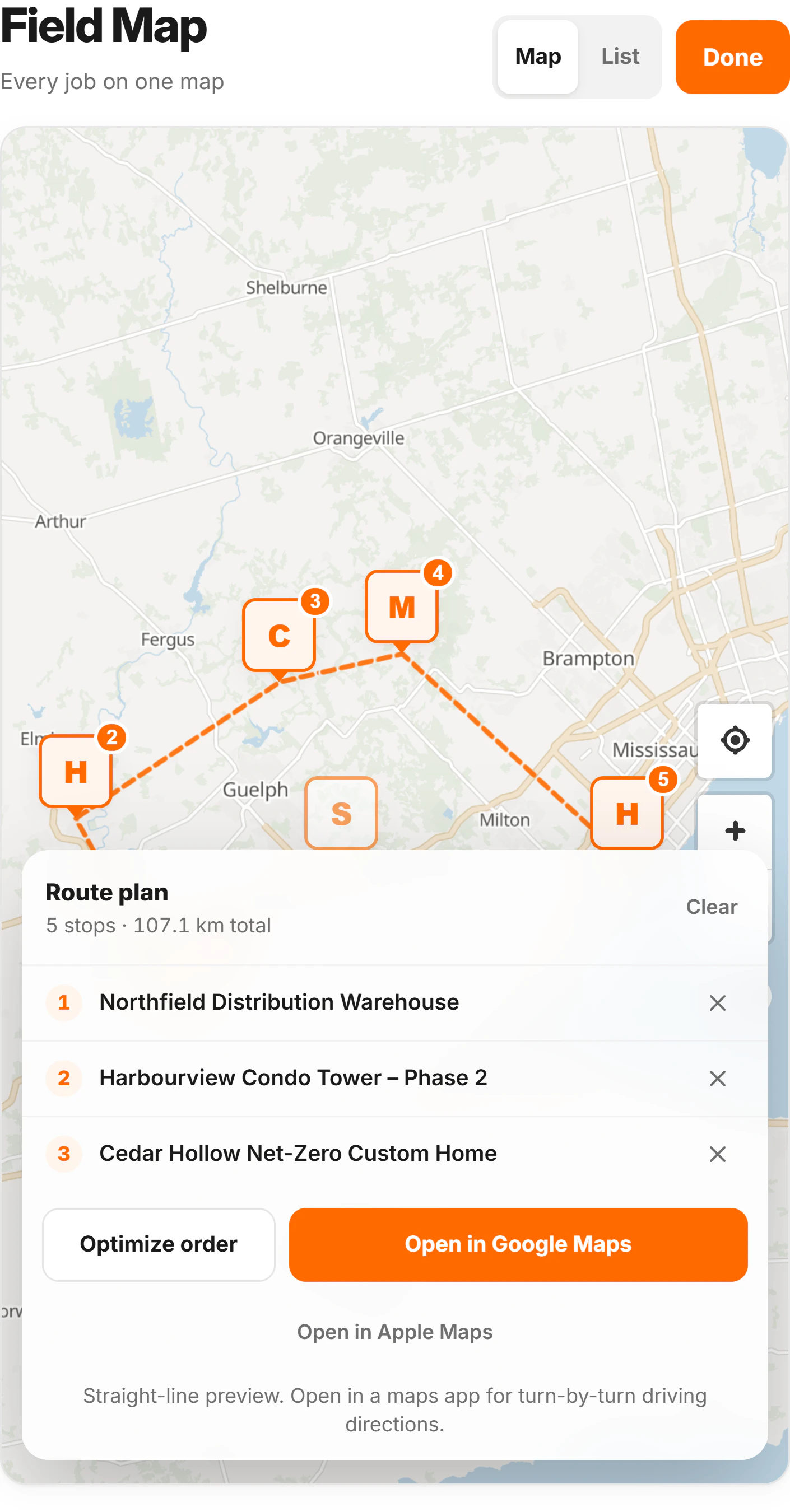
11Route planning

Four jobs before lunch, in the order that makes sense

Tap the jobs you have to hit today. CrewLog puts them in a sensible order, tells you what that costs you in distance, and hands the whole run to the maps app already on your phone.

Route planning on the CrewLog field map: four numbered stops joined by a dashed orange line, and a route plan panel reading four stops, 21.7 km total, with buttons to open the run in Google Maps or Apple Maps
Tap a pin to add a stopIt draws the runAnd totals the distanceHand it to the maps appGoogle or Apple, in order
  • Tap a pin to add a stop
  • It draws the runAnd totals the distance
  • Hand it to the maps appGoogle or Apple, in order
Route mode turns every pin into a toggle. Tap four, tap Optimize, go.

Less time driving between jobs. More time standing on one.

  • Optimize reorders the stops nearest-first from wherever you start, so the run stops doubling back on itself.
  • Up to ten stops — the number a Google or Apple Maps directions link will actually carry without silently dropping one.
  • Opens in Google Maps or Apple Maps starting from where you are standing, with every stop already in it.
  • Distance in kilometres or miles, picked from your region rather than from a setting nobody finds.

The distance shown is straight-line between stops, and the panel says so in as many words rather than implying it has priced your drive. The real turn-by-turn comes from the maps app, which is the one that knows about the bridge closure.

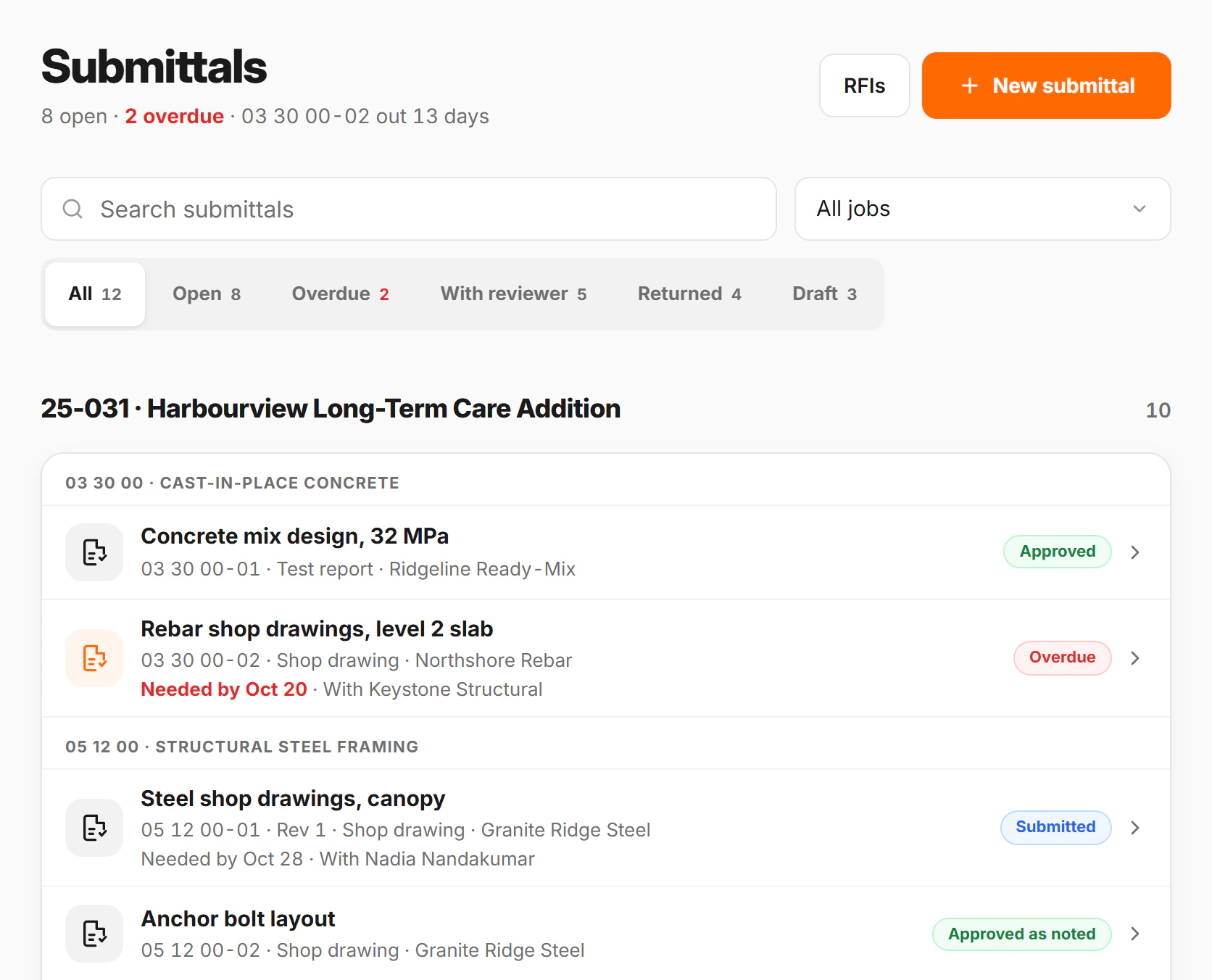
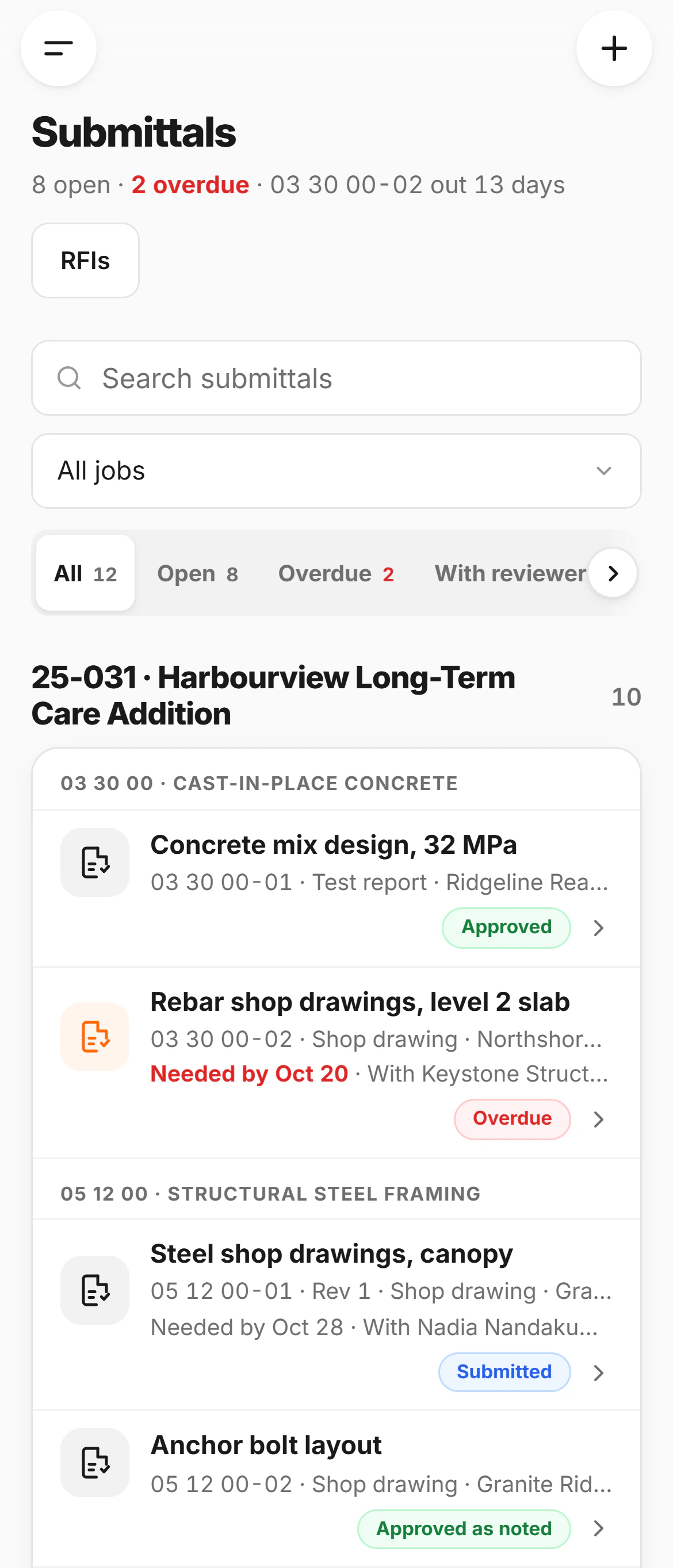
12RFIs

A question in a trench becomes a document with a clock on it

Somebody notices the beam pocket does not match the drawing. Said out loud, that is a problem everyone has forgotten by Thursday. In CrewLog it is a numbered request with a recipient, a due date, and a running count of how long it has been sitting.

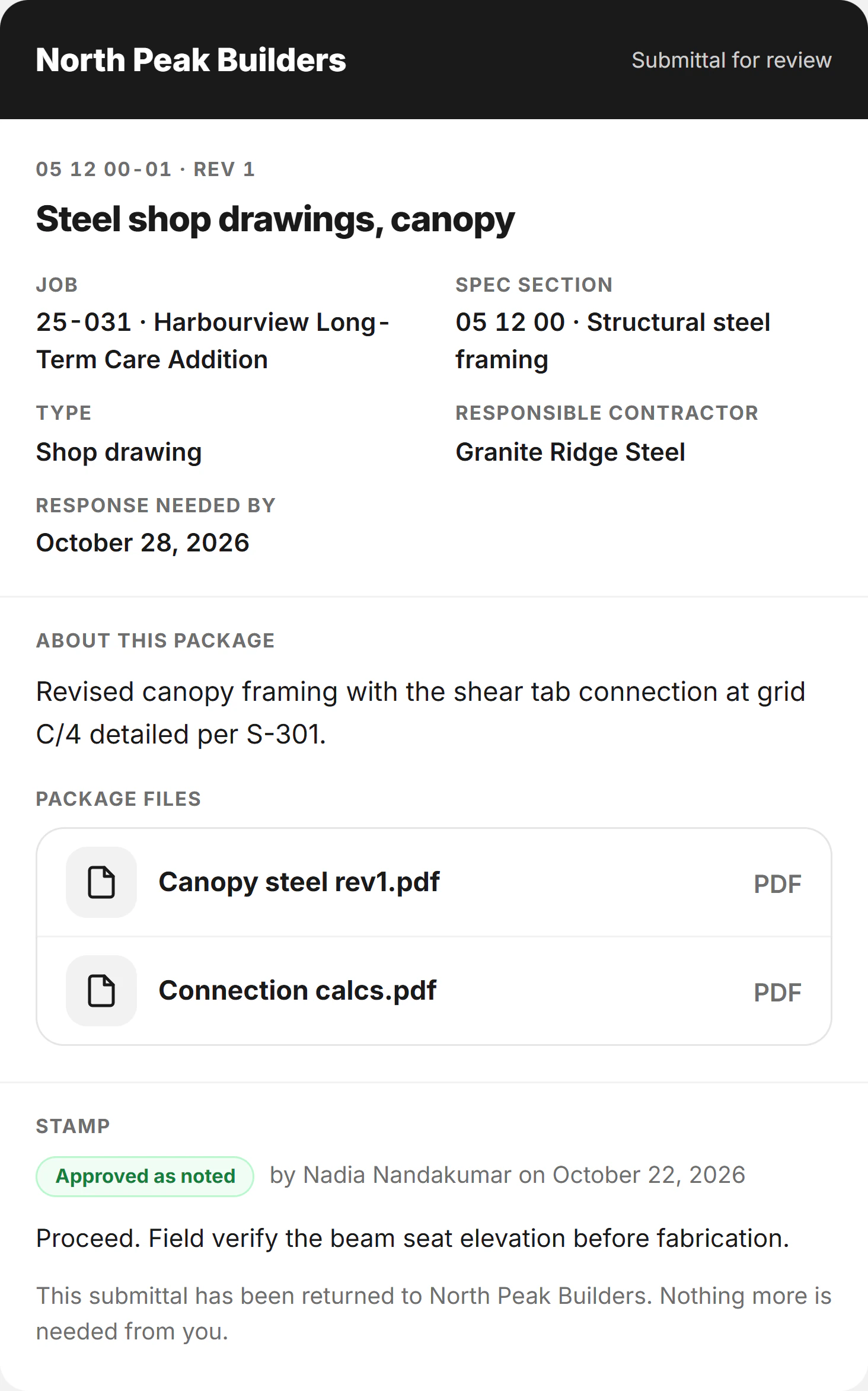
  • The architect or sub answers from a link with no account and no app — the same way your clients open a report.
  • An open RFI says how long it has been alive; an answered one says how long it took. That is the number that changes behaviour.
  • CrewLog can propose RFI drafts straight from a daily report — you read them and decide which ones are real. Crew · Pro
  • Open RFIs are carried into tomorrow's report as background, so the document can say this one is now on its fourth day.

From the field · 11:26

“Beam pocket at grid C-4 doesn't line up with the drawing. Nobody wants to guess on this one.”

RFI-014Summit Ridge Retail PlazaOpen · 3 days

Beam pocket conflict at grid C-4

Pocket dimension on S-201 conflicts with the beam depth shown on S-104. Confirm which governs before the pour on Thursday.

To · Meridian ArchitectsDue · Thu 14 Aug
ANSWERED IN 2 DAYSNo account needed

“S-201 governs. Pocket to be 12″ × 8″. Revised detail issued as SK-04.”

The order the register puts them in

  1. 1Unresolved first — open, then answered, then closed.
  2. 2Then whatever is furthest past its due date.
  3. 3Then whatever is due soonest.
  4. 4Then the oldest — three weeks outranks this morning.

Three statuses are stored — Open · Answered · Closed. Overdue and awaiting a reply are worked out from the dates, not another field for somebody to keep up to date.

The RFI register in CrewLog, with each request's status and how long it has been open
Open, overdue, awaitingCounted across every jobHow long it has been sittingWhat gets an RFI chased
  • Open, overdue, awaitingCounted across every job
  • How long it has been sittingWhat gets an RFI chased
The register. Everything unresolved, worst first.

Average turnaround prints an em dash and “No answers yet” until something has actually been answered. A reassuring zero on a register nobody has replied to is worse than no number at all.

13Change orders

The extra you did in an afternoon, priced and signed by Friday

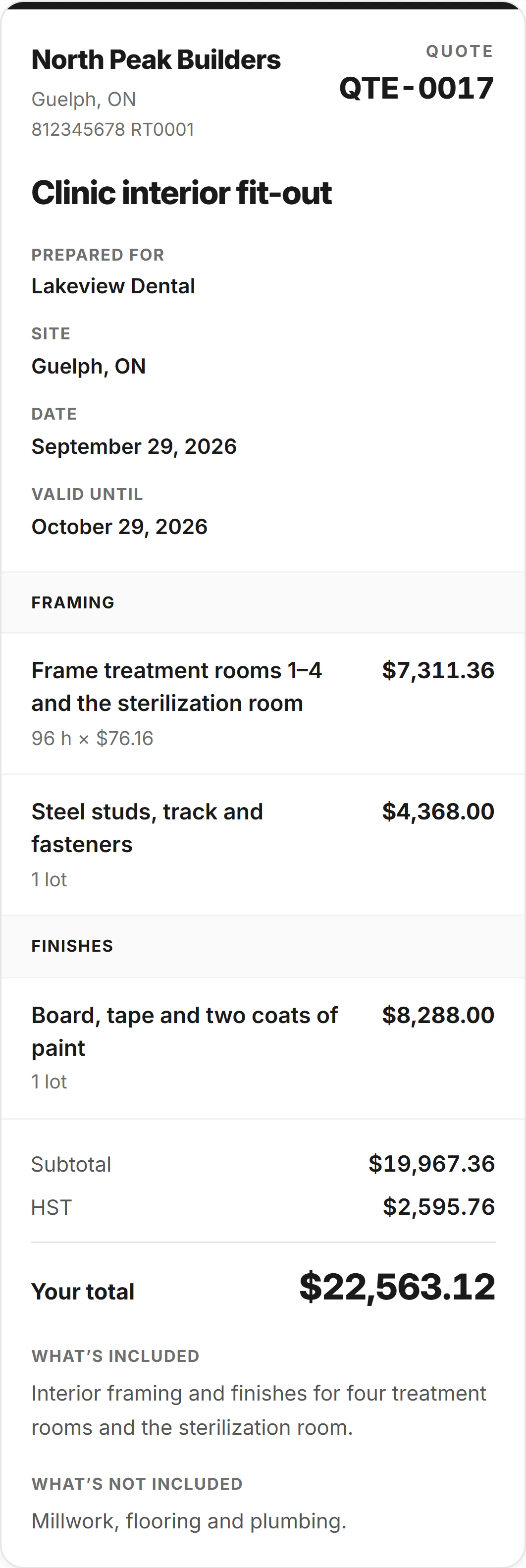
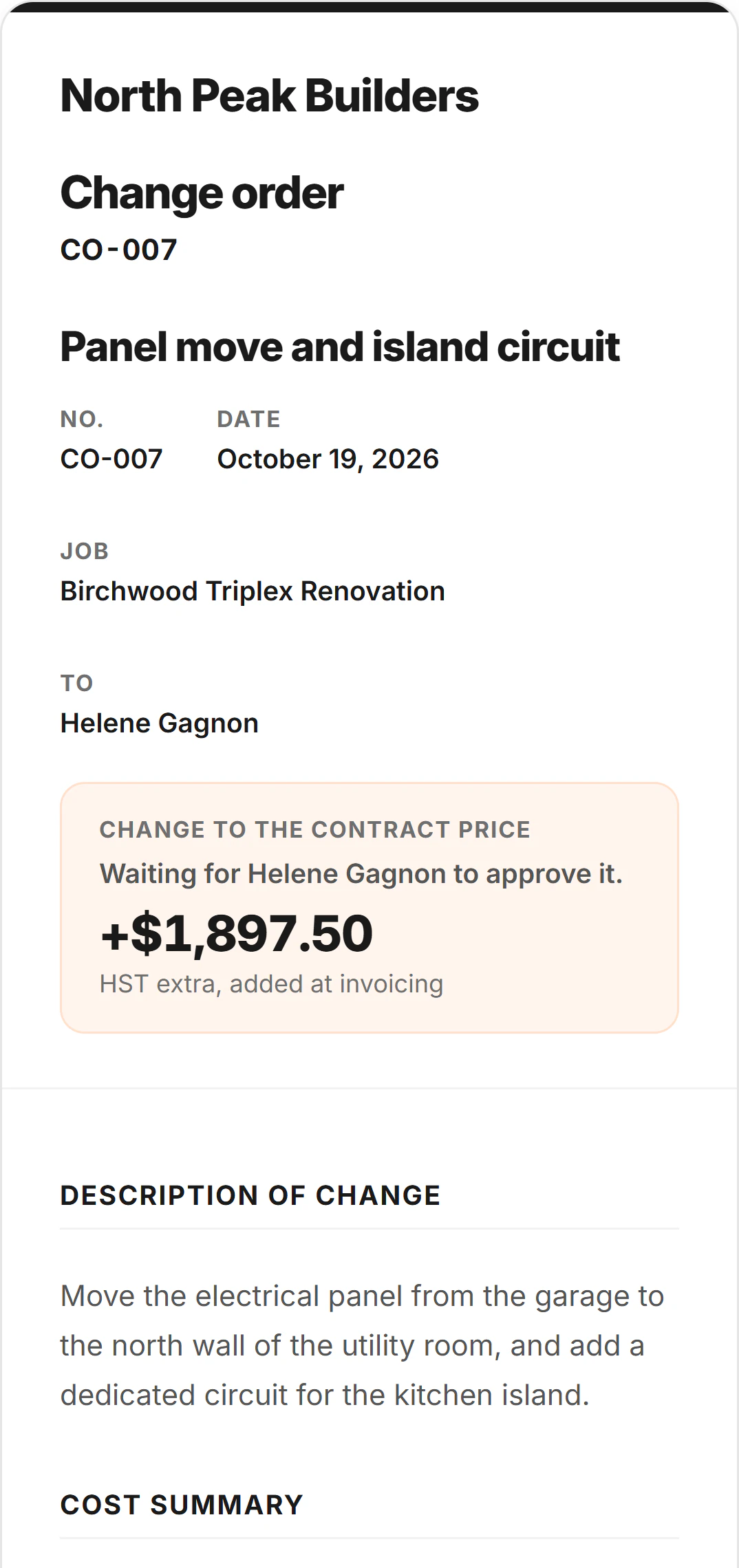
Describe the change out loud. Enter what it costs you. Set your margin. CrewLog writes the document, sends it, and your client signs it on their phone — no account, no app, no printer.

  1. Draft
  2. Sent
  3. Awaiting signature
  4. Signed

What you enter

  • Labour · 2 carpenters, 1.5 days$1,680
  • Material · LVL beam + hangers$940
  • Equipment · lift, half day$310
Your cost$2,930
Your margin · 22%$645
What the client sees$3,575

Your client never sees the first two rows. Their copy is written from marked-up lines, and one switch collapses even those to the single total.

A CrewLog change order, opened: the description, the priced line items and the signature block
Cost, margin, client priceOnly the third one is sentWhere the client signsDrawn or typed on a phone
  • Cost, margin, client priceOnly the third one is sent
  • Where the client signsDrawn or typed on a phone
A change order in draft. The bar across the top is yours; the document under it is what goes out.
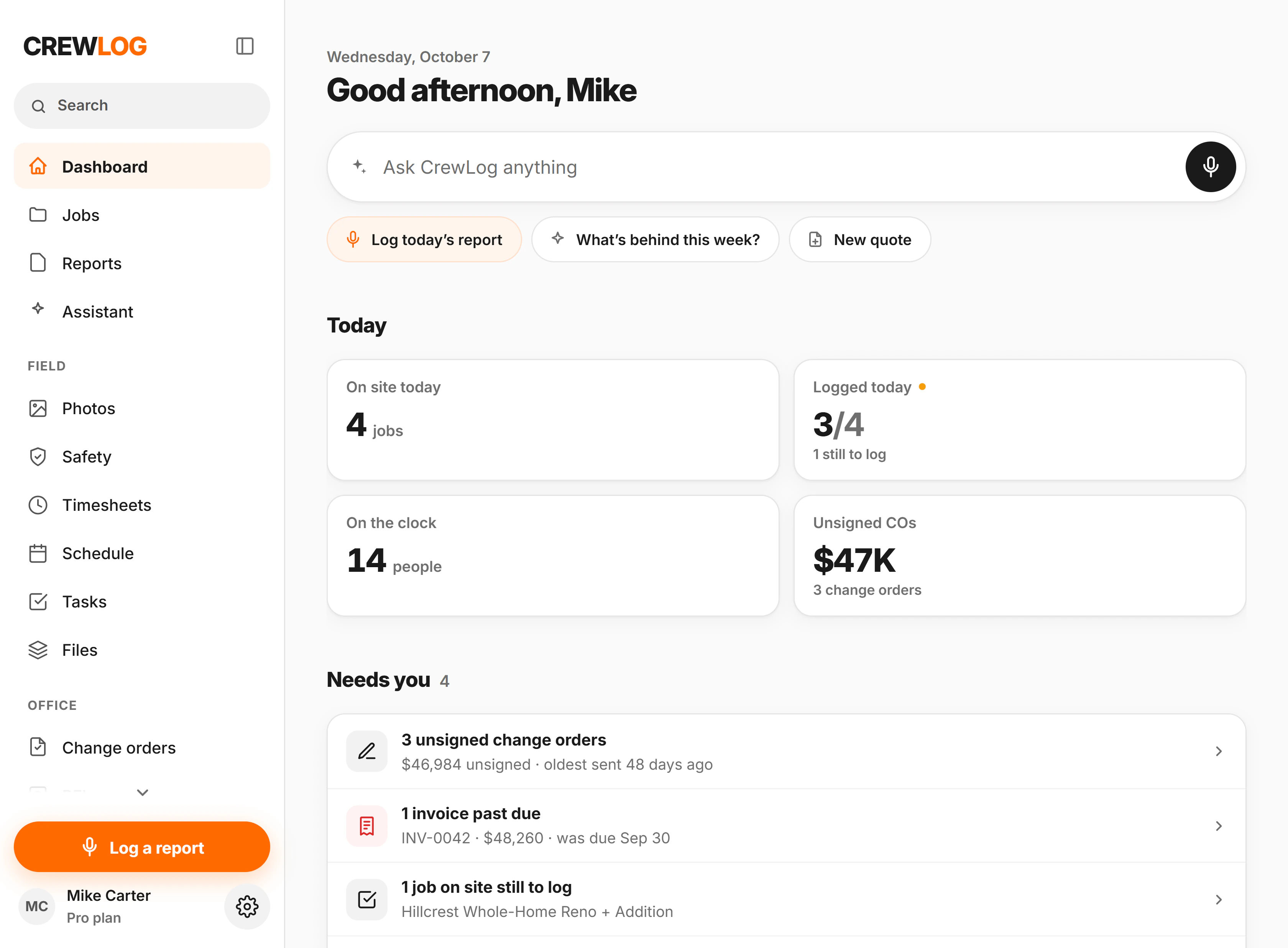
The change order register in CrewLog, led by the total value that has been sent but not yet signed
Money out for signatureThe one number you open the app forDraft, sent, signedOverdue after thirty days
  • Money out for signatureThe one number you open the app for
  • Draft, sent, signedOverdue after thirty days
The register, with the money waiting on a signature at the top of it.
  • Ten a month on Crew, a hundred on Pro. Change orders are not on Solo.
  • Signed change orders raise the job's contract value in job costing, so your margin is not quietly wrong.
  • Your dashboard carries the same unsigned total, so it is the first thing you see.
  • The document goes out under your logo, company name and brand colour. Pro

The cost table and the total are rendered from your stored line items, never from the AI's version of them. One dropped zero in a document a client signs is a contract dispute, so that number does not pass through a model.

14Project Pulse

From “what happened today” to “how is this job doing”

Every report you log is evidence. Pulse reads all of it — logs, the flags pulled out of them, overdue work, scope added by change orders, your target date — and gives the job a score out of 100 with the sentences that produced it.

The job health panel in CrewLog: a score of 81, an at-risk badge, a schedule outlook estimating two days behind, a button to write an owner update, and six plain-English factors including one safety event flagged in logs and two open tasks remaining
Write the client updateEdit it, then send it · Pro
  • Write the client updateEdit it, then send it · Pro
The health panel from the seeded demo account, opened.
  • On track, watch or at risk — and the job list, the map and the forecast all agree, because they read the same verdict.
  • One red factor floors the badge. Eighty-one out of a hundred with a safety event in the logs still reads at risk, because a score does not get to overrule the thing that happened.
  • The schedule outlook sits in the same panel with its own confidence, so the score and the finish date never contradict each other.
  • Overdue RFIs, corrective actions past due, late deliveries, a thin projected margin, a job past its target date — all of it moves the number, not just whether somebody wrote a log.
  • Turn the same figures into a client update, edit it in your own words, and send it from the same panel. Pro
  • It lives at the top of the job page, one scroll above the reports that produced it.

The score is arithmetic on your own records — no model call, which is why it is instant, free and identical every time you open it. A job with nothing logged on it reads “no activity yet” rather than a red zero. The only part AI writes is the client update, and you edit that before anybody sees it.

15Forecast

See the slip while it is still one day, not six weeks

CrewLog keeps two schedules: the one you drew, and the one it believes will actually happen. The gap between them is the product — and it moves the moment a phase falls behind.

The Job Forecast overview in CrewLog: projected finish against planned finish, an overall score, peak crew, duration and labour cost, plain-English observations, and a two-week crew requirement
Projected, not plannedWritten in plain EnglishNo model wrote these
  • Projected, not planned
  • Written in plain EnglishNo model wrote these
Job Forecast opens on the answer, not on a chart.
The forecast timeline: seven phases with planned and projected bars, the critical path in red, float, a today line, and a crew-per-day histogram
Planned against projected, with the critical path and the float.
The forecast crew view: manpower against capacity, peak crew, man-hours and labour cost
Crew loading, and the days you are short.
  • Two verdicts, one vocabulary: a job cannot be green on one screen and red on another, because both read the same engine.
  • Two weeks of crew requirement on the overview, one box per day, against the number you can actually field — so the short days are named rather than counted.
  • Durations are working days. Weekends and holidays fall out, so “three days” means three shifts.
  • Drag a bar and the critical path, the projection, the crew histogram and the health score all recompute before the next frame.
  • Timeline, crew loading, a board, a list, and a scenario lab — add a crew, accelerate the critical path, work weekends, push the start — over one solve.
  • Overdue tasks, logged delays, scope added by change orders and days since the last log all feed it, so it runs on work you were doing anyway.
  • Job Forecast and the AI outlook are Pro. The deterministic forecast card renders instantly, with no AI call at all.

A forecast a contractor will act on has to be explainable, so every number here traces back to arithmetic you could redo on paper. AI narrates those figures into an outlook you can paste into an email; it never produces the figures.

16Offline

Built for the jobsite you actually work on

Construction happens in places phones do not. CrewLog treats that as the normal case rather than an error state.

You're offline. 2 reports saved on this device, sending when you're back.
  1. 01

    No signal

    A basement, a valley, a steel deck, or the one corner of the site nobody gets bars in.

  2. 02

    Keep working

    Record the day, shoot the photos, type the notes. Nothing greys out and nothing warns you.

  3. 03

    Saved on this device

    The report, the photos and the raw audio are held on the phone — not a summary of them, the actual files.

  4. 04

    Sends itself

    Back in range the queue drains on its own, the audio is transcribed, and you are told what sent.

A report that cannot send says so and names why — a trial that ended, a role that changed, a job that was deleted — instead of spinning forever. And on a shared site tablet, a colleague's queued report waits for its own owner to sign in rather than going out under your name.

17The AI layer

AI is not a tab. It runs underneath the whole thing.

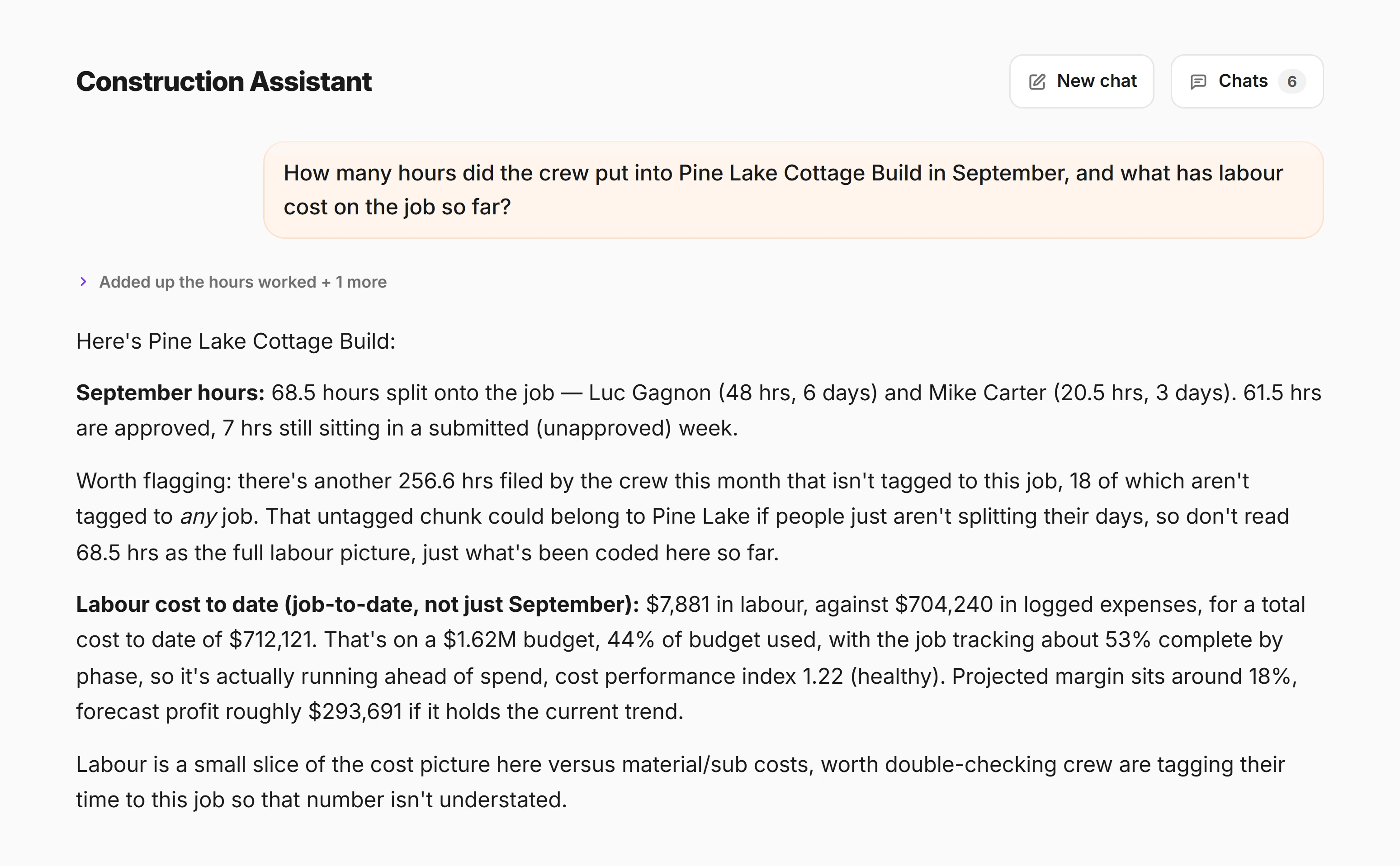
There is no AI section of CrewLog to go and visit. It is in the report writer, the change order, the RFI drafts, the client update, the outlook, and the box you can just ask a question in — and every one of them stops and waits for a person.

The Construction Assistant in CrewLog answering the question: which RFIs are still waiting on an answer, naming three jobs and what each one is waiting on
It read your actual jobsNames, statuses, what each waits onOne box, no mode to pickVoice, photo, or typed
  • It read your actual jobsNames, statuses, what each waits on
  • One box, no mode to pickVoice, photo, or typed
One question, answered off the seeded demo account's own RFIs.
  • AI daily reportsTurns a voice note, photos, crew count and the weather into a structured report.You read it before it sends.
  • AI change ordersCrew · ProWrites the document from what you described out loud.The money comes from your line items, not the model.
  • AI RFIsCrew · ProProposes requests from a daily report you already filed.You pick which ones are real.
  • AI Project PulseProWrites the client update from a score it did not calculate.You edit it, then you send it.
  • AI schedule outlookProExplains the forecast in a paragraph you can paste into an email.The numbers are arithmetic, not a guess.
  • Construction Assistant22 tools: 14 that read your jobs inside the answer, 8 that only ever draft.Nothing is written until you tap Confirm.

Confirm required

A write is a separate authenticated request. The server re-checks your plan, your role, your per-member permissions and whether that person is still on the team — even if all of it was fine when the draft was proposed.

The whole story is on the AI page →

None of this is extra work.
It is the work, written down.

The whole thing

One system, from a gloved hand to a decision

Everything on this page is one path. Work happens, CrewLog records it, the record adds up to a picture, and the picture is what you act on tomorrow morning.

FieldWhat the crew does anyway
  • Voice notes
  • Photos
  • Hours
  • Toolbox talks
  • Tasks
  • Deliveries
  • Receipts
  • Offline
CrewLogWhere it lands, filed against a job
  • Jobs
  • Daily reports
  • Change orders
  • RFIs
  • Schedule
  • Materials
  • Drawings
  • Documents
  • Timesheets
  • Field map
IntelligenceWhat it adds up to
  • Project Pulse
  • Schedule Forecast
  • Job Forecast
  • Job costing
  • Construction Assistant
What you get out
  • You find out a job is slipping while the slip is still one day.
  • Nobody spends Sunday night writing up the week.
  • The change you did in an afternoon is signed by Friday.
  • Two years later, the record is still there and it still makes sense.
Everything in the box

The whole list, in one screen

No asterisks. An unmarked row is on every plan, Solo included; where something needs Crew or Pro, the plan is on the row rather than in an email after you have paid.

AI

12
  • AI daily reports
  • AI change ordersCrew · Pro
  • AI RFI draftsCrew · Pro
  • AI Project Pulse updatePro
  • AI schedule outlookPro
  • AI receipt scanningCrew · Pro
  • Construction Assistant22 tools
  • Voice transcription
  • Flags & follow-ups from your notes
  • Read a report aloud
  • Caption & report translationEN · FR · ES
  • Your AI usage, as a percentage

Field

14
  • Daily reports, voice or typed
  • Site photos
  • Photo markup
  • Toolbox talks32 topics
  • Hazard checklist14 common
  • Incident & near-miss register
  • Corrective actions with an owner
  • Toolbox talk PDFPro
  • Timesheets & overtime rulesCrew · Pro
  • Time offCrew · Pro
  • TasksCrew · Pro
  • Materials & deliveries
  • Offline capture and sync
  • Weather logged on the record

Projects

14
  • Jobs
  • Job statuses & target dates
  • Field map
  • Satellite & terrain
  • Route planning
  • Calendar & scheduleCrew · Pro
  • Job ForecastPro
  • Scenario labPro
  • Crew loadingPro
  • Schedule ForecastPro
  • Project PulsePro
  • Job costingCrew · Pro
  • Contacts
  • Search everything⌘K

Documentation

14
  • Daily report documents
  • Change orders with e-signatureCrew · Pro
  • RFIs with public answer linksCrew · Pro
  • Drawings libraryCrew · Pro
  • Documents libraryCrew · Pro
  • Drawing & document markupCrew · Pro
  • Client links, no account needed
  • Email delivery
  • Your logo & brand colourPro
  • Print a report or a job
  • PDF & CSV exportPro
  • Scheduled remindersPro
  • Morning brief
  • Weekly digest

Team & account

  • Owner, admin, member and viewer roles
  • Per-job access, per person
  • A switch for each of 15 features, per person
  • A share of the monthly AI allowance, per person
  • Email invites
  • English, French and Spanish
  • Works on a phone, tablet or laptop

On Google Play now. In review with Apple for iPhone. Full plan-by-plan detail on the pricing page →

Your jobs already produce all of this.
CrewLog is where it stops getting lost.

The photos are already on somebody's phone. The change was already agreed in a parking lot. The delay already happened. Log one day on one job. Everything above follows from that.

Start free trialSee pricing

7 days free on Pro, then the plan you pick · Card required, $0 today · Cancel anytime

CREWLOG

Log the day, track every job, and keep your whole crew on the same page, with a clean record behind every job.

Start free trial

Get the app

Coming soon to theApp StoreGet it onGoogle Play

Product

FeaturesAIPricingFAQ

Company

AboutBook a demoContactSign up

Legal

Privacy policyTerms of service

© 2026 CrewLog Technologies Inc. All rights reserved.

Proudly Canadian, serving contractors across Canada and the United States

support@crewlog.ai